You do not have to leave a conversation to use a workflow. Type @, pick the workflow, and it runs right there: its questions, its progress and its result all show in the chat, and Ditto can talk with you about the result afterwards.
This page also covers guides, which are workflows that run as a conversation instead of as fixed steps.
Start a Workflow from a Chat
- In any chat, type @ in the message box.
- Under Run a workflow, pick the one you want. Keep typing to narrow the list.
- Send the message. You can add a few words after the name if you like, but you do not have to.
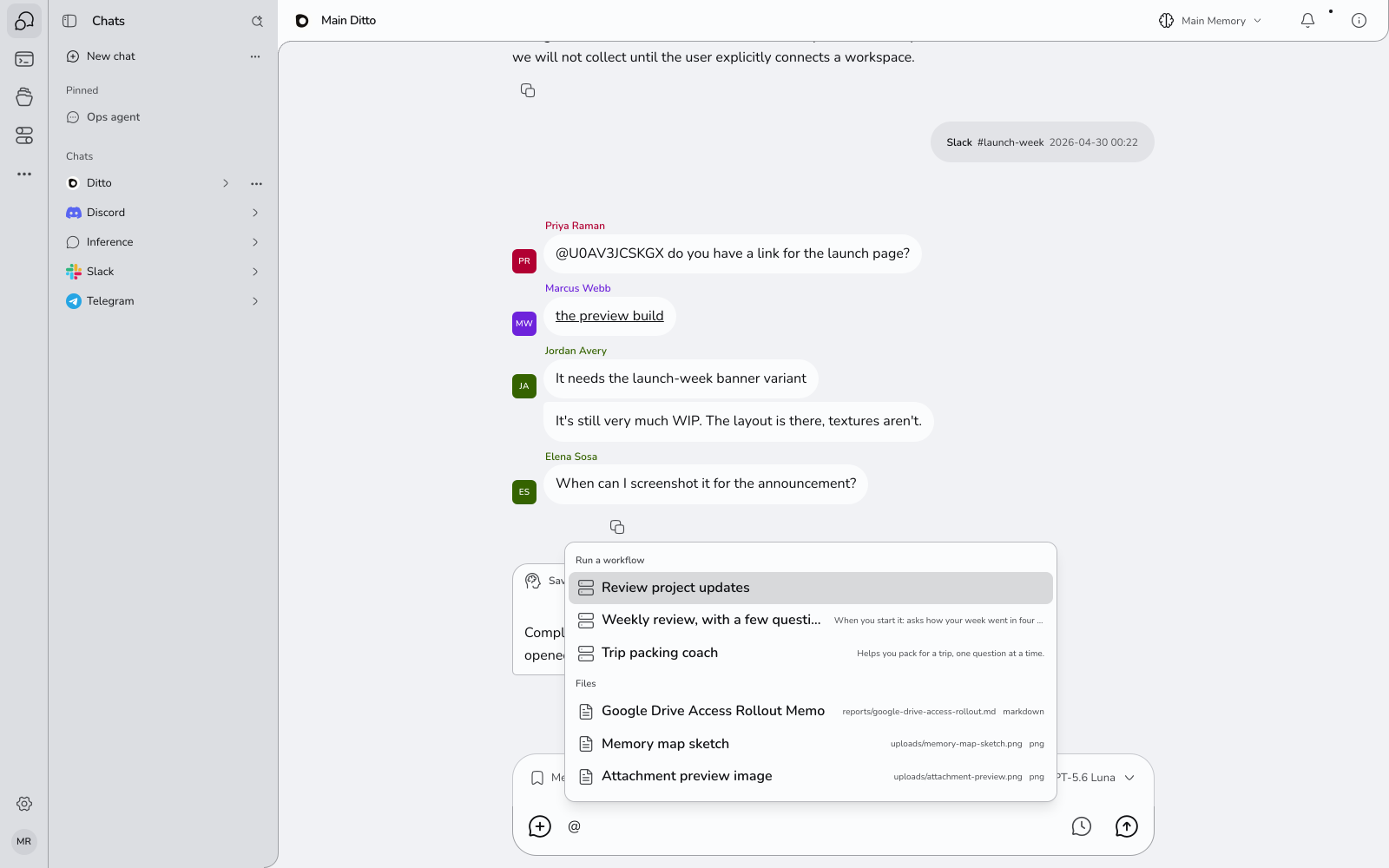
Ditto starts the workflow and puts a card for the run in its reply.
Picking the workflow yourself is what starts it. If you only ask in words (“run my morning brief”), Ditto shows a card with Run now for you to press instead.
Follow It on the Card
The card follows the run while you carry on chatting:
- While it works, the card names the step it is on.
- If the workflow asks you something, the form appears on the card. Answer it and press Send answer.
- When it finishes, the result is on the card, with any file it saved. Open run takes you to the run’s page for the detail.
A run you start from a chat does not also send you an alert about its question or its result. They are already in front of you.
Talk About the Result
The chat keeps its context. After the run, ask about it in the same conversation:
What goal did that review set for next week?Turn that into three bullet points I can paste into Slack.Ditto knows which workflows were started in this chat, whether each is still running, waiting or finished, and what it produced.
If a Workflow Needs Something First
Some workflows need a value before they start, such as a topic. If you did not give it, the card says what is missing and has a Run button with the fields to fill in.
Guides
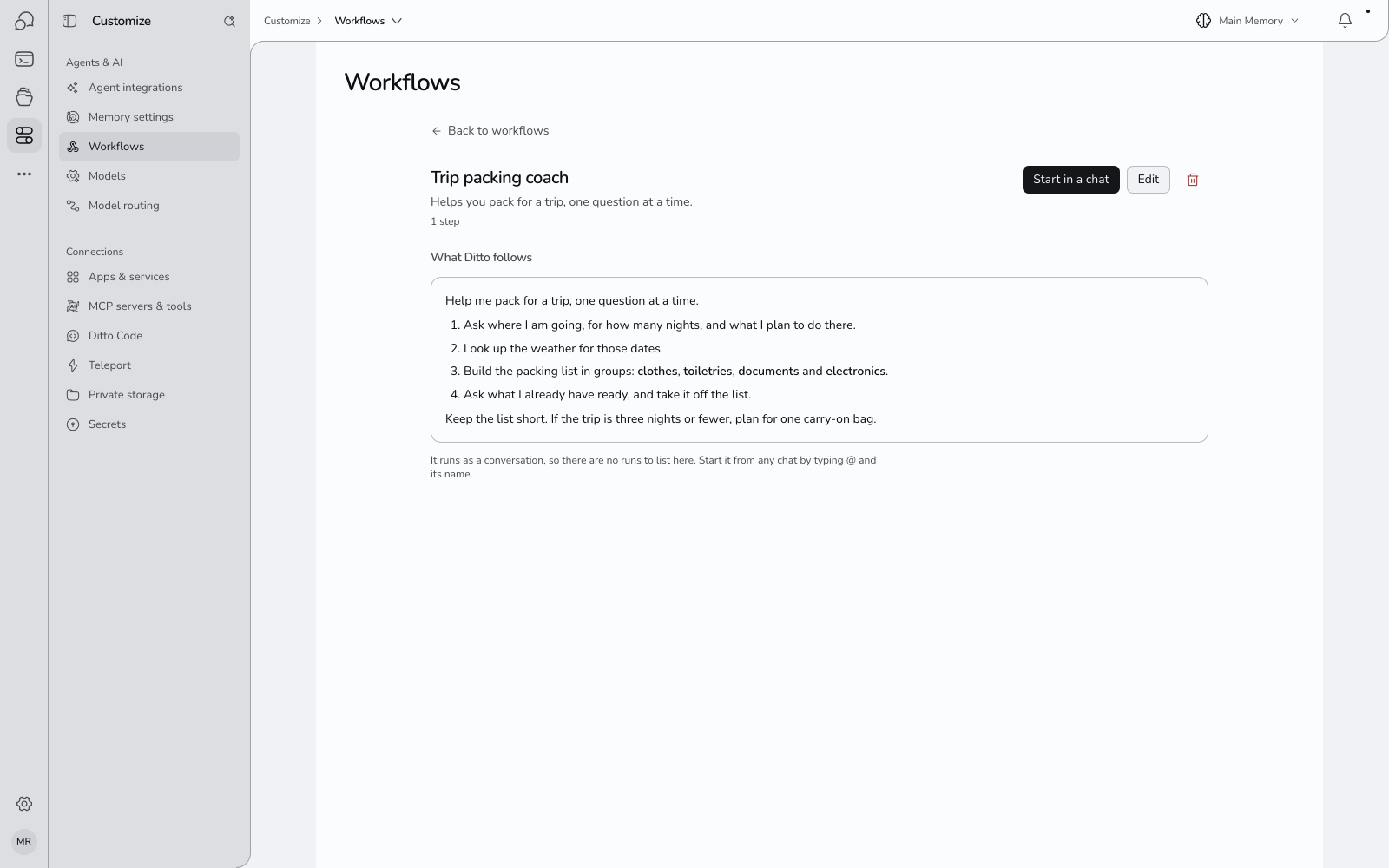
A guide is a workflow that runs as a conversation. Instead of steps that run by themselves, it has instructions that Ditto follows with you: what to ask, in what order, what to produce, when to stop. Use one for jobs that are a back-and-forth by nature: planning a trip, preparing for a hard conversation, a weekly check-in.
Start a Guide
- On the guide’s page, press Start in a chat. Ditto opens the chat and starts it.
- Or in any chat, type @ and pick the guide, like any other workflow.
A card in the reply says Guide started. From there you are simply talking to Ditto, and it follows the guide until the job is done. If you have something half-typed in the message box, Ditto leaves it alone and asks you to send or clear it first.
Make a Guide
- Open Customize → Agents & AI → Workflows and press New workflow.
- Open Or build the steps yourself and write what Ditto should do in the one step: what to ask, what to make, and any rules to keep to.
- Under When it runs, choose In a chat, as a conversation.
- Press Create workflow.
You can also import a skill written for another AI agent. A skill that is a conversation becomes a guide.
How a Guide Differs from Other Workflows
| A workflow with steps | A guide | |
|---|---|---|
| Runs | By itself, step by step | As a conversation with you |
| Starts | Run now, a schedule, or @ in a chat | Start in a chat, or @ in a chat |
| Can run on a schedule | Yes | No |
| Has a run page and history | Yes | No. The conversation is the record |
| Try it | Yes | No. Start it and see |
| Costs | Each run, mainly the thinking steps | Like any chat |
Where This Works
- Workflows show under @ in ordinary chats with Ditto.
- They are not offered in a temporary chat, in a coding session, or in a chat with an agent you have limited to certain tools.
Questions
Does starting a workflow in chat use the chat’s model? The reply that starts it does. The workflow’s own steps use whatever the workflow uses, which is Auto unless you chose otherwise.
I picked a workflow and nothing started. The card will say why: usually a value it needs first, or an app that is not connected.
Can a guide use my apps and memories? Yes, the same ones the chat can.