You change a workflow the same way you made it: in plain words. And you can try it before it runs for real.
Change a Draft or a Saved Workflow
Open the workflow’s editor: it opens by itself for a new draft, and Edit opens it for a saved workflow.
There are two ways to change what it does.
Tap a Part
In the outline, the parts you can change are underlined. Tap one, type what it should be instead, and press Change it.
For example, tap the week and type “the past two weeks”.
Describe the Change
Under the outline is a box labelled Describe a change, and Ditto makes it. Say what should be different:
After each point, add one line on what it means for a small startup.Ditto changes only what you asked for, and marks the steps that changed.
Change a Workflow from Chat
For a saved workflow, you can just ask:
Send it on Fridays at 4pm instead, and end with three priorities
for next week.
The change is saved straight away. The card in the reply says what changed and has an Undo button.
Two things to know:
- Undo is there until something else changes the workflow.
- If the change would let the workflow do something new without asking (for example, start sending email), it is not saved by itself. The card asks you to confirm with Update workflow.
Try It Before It Runs for Real
Try it runs the workflow once, right now.
- Nothing leaves. Anything that would send, post, delete, change a setting, or save a memory or file is held back, and Ditto tells you what it held.
- It is free.
- It uses real data, so you see a real result.
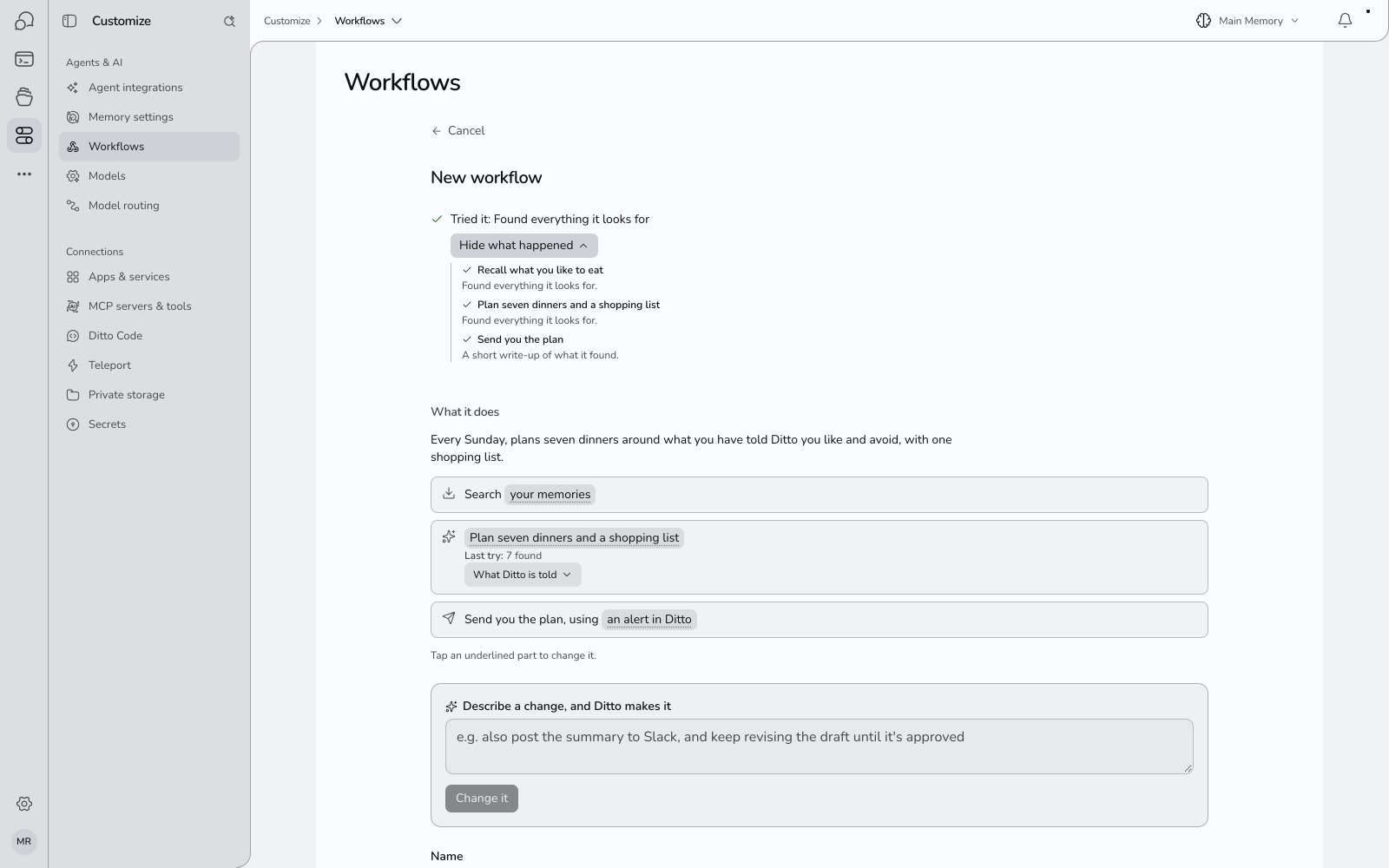
- Press Try it at the bottom of the editor (or Try it once at the top).
- If the workflow needs a value, Ditto asks for it. It is used for this try only.
- Read the line that starts Tried it. A green tick means it did what you asked. A warning says what fell short.
- Press Show what happened to see what each step came back with.
When a Try Falls Short
- If Ditto can see how to fix it, it says Ditto has a fix and what the fix is. Press Use fix to apply it, and Undo if you change your mind. Nothing changes until you press Use fix. The recording above shows this: the first try falls short, the fix is applied, and the second try passes.
- Otherwise change the workflow yourself and press Try again.
- You can still create a workflow that did not fully work when tried.
What a Try Does Not Do
A try is a short rehearsal, not a full run:
- You get 5 tries a day. After that Ditto says “You’ve used today’s tries”, and you can still create the workflow.
- A try stops after about 90 seconds.
- A workflow that goes through a list one item at a time tries only the first two items.
The Full Editor
Everything else about a workflow is in the same editor.
- Name. Change it in the Name field.
- When it runs. See Schedules, Runs and Results.
- Things that change each time. Add one, or give one a usual value.
- What it may do without asking. Under each step that would send or change something, Runs on its own lists what you allowed. Remove one, or press Ask first, and runs will wait for your approval at that step.
- More options. Shows each step as Ditto wrote it, with Edit and Add step.
- Show technical details. Shows whether a step is an AI step or a code step, the code itself, and a link to the graph editor. The graph editor is where you build workflows that branch, loop, repeat for each item in a list, or run only if a condition holds, and where you pick the model for a step.
Press Save workflow when you are done.