
The Developer tab in Settings is where you build on top of Ditto. Create an app, mint scoped API keys, publish it to the app store, and hand testers a tryout link. Every app gets its own isolated memory for each user and can ask, separately, for access to a user’s main memory.
The Developer tab was previously labeled Admin. Same place, clearer name.
See it live in Ditto under Settings → Developer.
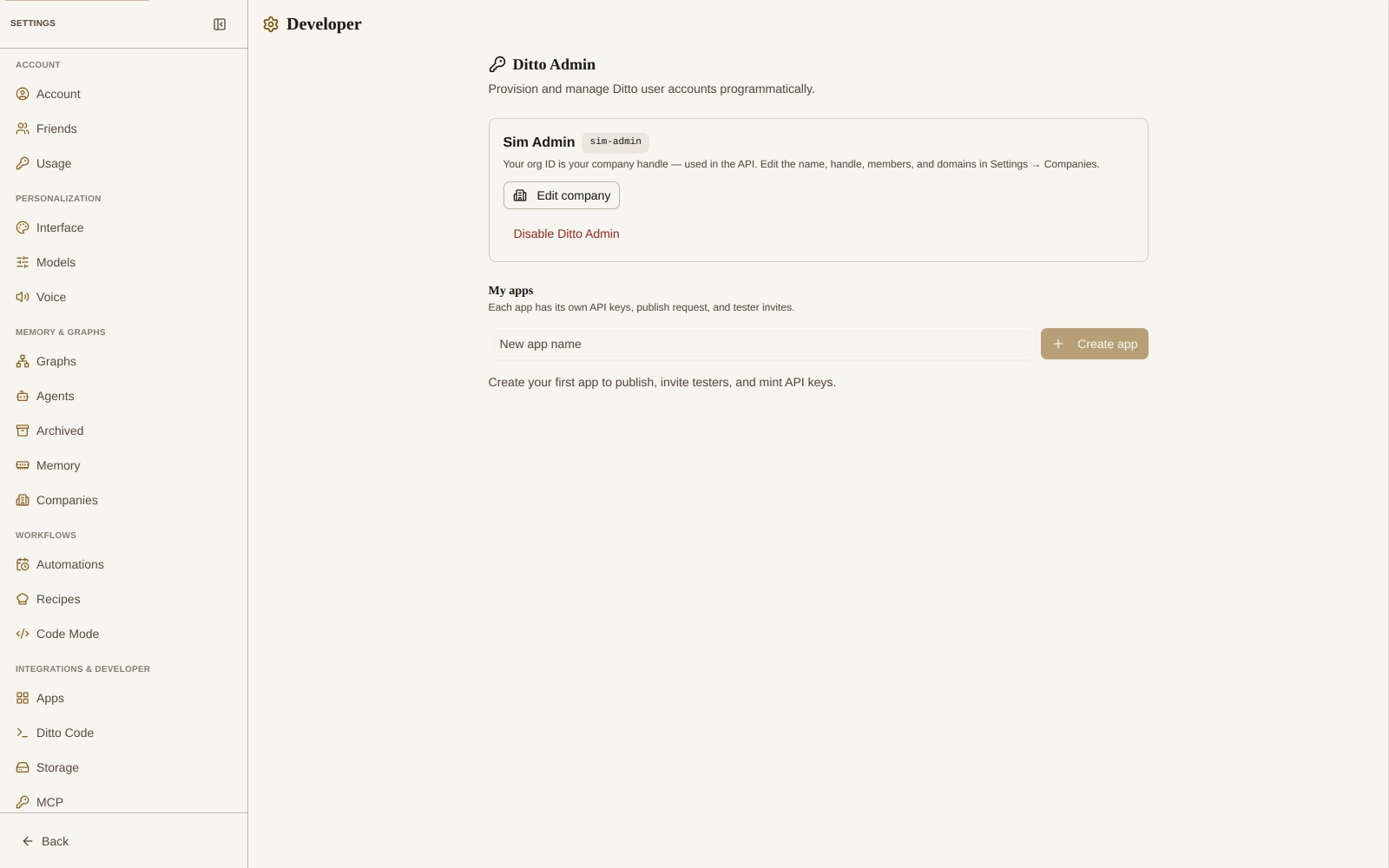
Enable the Developer Surface
Before creating apps or keys, enable the developer surface:
- Open Settings → Developer.
- Enter an Organization name (a display name, separate from your personal Ditto handle). Use the Use my Ditto handle button to pre-fill it.
- Click Enable Ditto Admin.
You get a stable organization ID (for example admin_abc123…). Enabling is free for the first year; treat your keys like production credentials, since they can create and modify real Ditto accounts on your behalf.
You can rename your organization later, or Disable Ditto Admin to stop all keys immediately. Your org ID and keys are kept on disable, so you can re-enable later.
Create an App
In the My Apps section:
- Type a name into New app name and click Create app.
- Expand the app card to manage it. You can Rename the app, publish it, configure a tryout link, and mint per-app keys.
Each app shows an Enabled / Disabled badge, and an Archived badge once archived.
Mint API Keys With Scopes
Apps and the admin org both manage API keys under the same model:
- Give the key a Name (for example, “Katana production”).
- Choose an Access level:
- Read access — view provisioned users and their agent accounts.
- Write access — provision users and create or link agent accounts.
- For finer control, expand Advanced — individual scopes to pick raw scope keys.
- Click Create key.
The plaintext key is shown once, with a copy button. Store it securely; you cannot read it again. Each key row shows its name, created and last-used dates, and its scopes as chips (or “full access (*)” for a superscope). Edit a key’s name and scopes inline, or Revoke it. Revoked keys keep their row but stop authenticating immediately.
For the full endpoint reference, click API docs to open the Swagger UI at /api/admin/v1/swagger/.
Publish Your App
Expand an app and open Publish your app to submit it to the public app store:
- Upload an icon (PNG, JPEG, or WebP, up to 512 KB).
- Add a Tagline and a Description.
- Click Submit for review (or Re-submit for review).
The status badge tracks where you are: Not submitted, In review, Approved — listed, or Rejected. If a submission is rejected, the reviewer notes appear inline so you can address them and re-submit.
Approved apps appear under Discover apps in every user’s Apps tab, where anyone can connect them.
Per-App Tryout Links
A tryout link lets testers connect your app before it is approved, without going through the store.
In the Tryout link section of an expanded app:
- Click Create link (then Enable / Disable to toggle it on and off).
- Copy the generated link. Use the rotate button to mint a fresh token; rotating resets the rate-limit window.
- Choose Pre-requested permissions — the scopes the consent screen will offer when someone redeems the link.
Your app always gets its own isolated app memory; those five app-memory scopes are marked ALWAYS and cannot be toggled off. Everything else (main-memory verbs, subscriptions, profile) is opt-in, shown to the user at accept time so they choose what to approve. Main-memory permissions are sensitive and highlighted; they are never granted unless the user opts in. See App Permissions for what each scope means.
Pre-requested scopes lock after the first redemption, so set them before sharing the link widely.
Free tryouts are capped at 100 distinct users while your app is unapproved (across all of your unapproved apps). Approved apps are unlimited.
App Lifecycle
- Archive app delists it from the public store and flags it as no longer maintained. Its keys keep working for existing users.
- Delete app removes the app, its keys, and its invites. Your users keep their app memory: the knowledge graphs your app created stay in each user’s Ditto account. You cannot delete user memories this way.
Related
- App Permissions — the consent screen and granular memory scopes
- Cross-App Data Sharing — let one of your apps read another’s data
- Agent Accounts — provision and manage agent accounts programmatically
- Connected Apps — connecting third-party apps as a user