
Threads let you organize your conversations with Ditto into separate contexts. Instead of one long chat history, you can create dedicated threads for different topics, projects, or workflows.
How Threads Work
Every account starts with a Main Thread that holds all your conversations by default. You can create additional threads at any time to keep things organized.
Each thread has:
- Its own conversation history: messages stay scoped to that thread
- Shared memory: Ditto’s long-term memory works across all threads, so context from one thread can inform another
- A custom name and date: so you can find conversations later
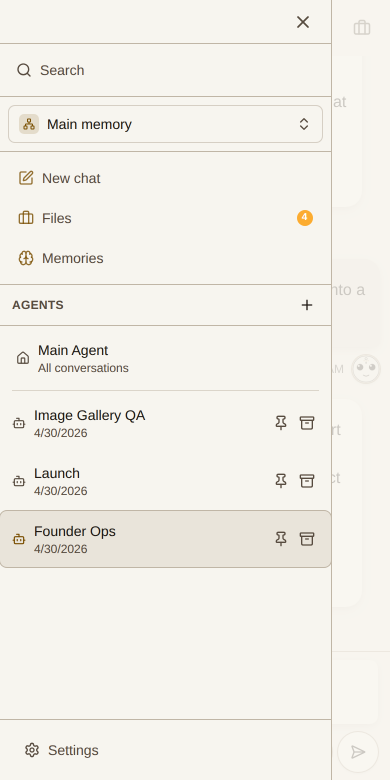
Creating a New Thread
- Open the sidebar by tapping the menu icon (top left).
- Click the + button next to “Threads.”
- Give your thread a name that describes its purpose.
- Start chatting, your conversation is now scoped to this thread.
Switching Between Threads
Open the sidebar to see all your threads. Click any thread to switch to it. The Main Thread always appears at the top and contains all conversations not assigned to a specific thread.
Managing Threads
Each thread in the sidebar shows:
- Thread name: click the pencil icon to rename it
- Date created: helps you find older threads
- Delete button: remove threads you no longer need
When to Use Threads
- Project planning: keep each project’s conversations separate
- Learning topics: create a thread for each subject you’re studying
- Work vs personal: separate professional and personal conversations
- Brainstorming sessions: isolate creative exploration from everyday chat
Memory Across Threads
Ditto’s memory system works across all threads. If you tell Ditto about your preferences in one thread, it remembers them in others. Threads organize your conversations, while memory connects your knowledge.