There are several ways to make a workflow. They all end in the same place: a draft you can read, try and save.
| Way | Best when |
|---|---|
| Ask in chat | You are already talking to Ditto |
| Describe it on the Workflows page | You want to see and adjust the draft before anything is saved |
| Start from a ready-made one | You want ideas, or a common job |
| Save a chat you just finished | Ditto just did something you will want again (rolling out) |
| Import a skill | You already wrote the job down for another AI agent |
Ask in Chat
Say what you want done and when. For example:
Build me a workflow: every Sunday at 6pm, look through my memories
for what I worked on this week and send me a short weekly review
as an alert in Ditto.
Ditto builds the workflow and shows it on a card in the conversation, with its steps and its schedule. If a ready-made workflow is close to what you asked for, Ditto shows that too, with Set up.
- Read the card. It says what the workflow does and when it runs.
- Press Save workflow to keep it, Edit to adjust it first, or Don’t save.
- Once saved, the card has Open, Run now, Edit and Delete, and Pause if it runs on a schedule.
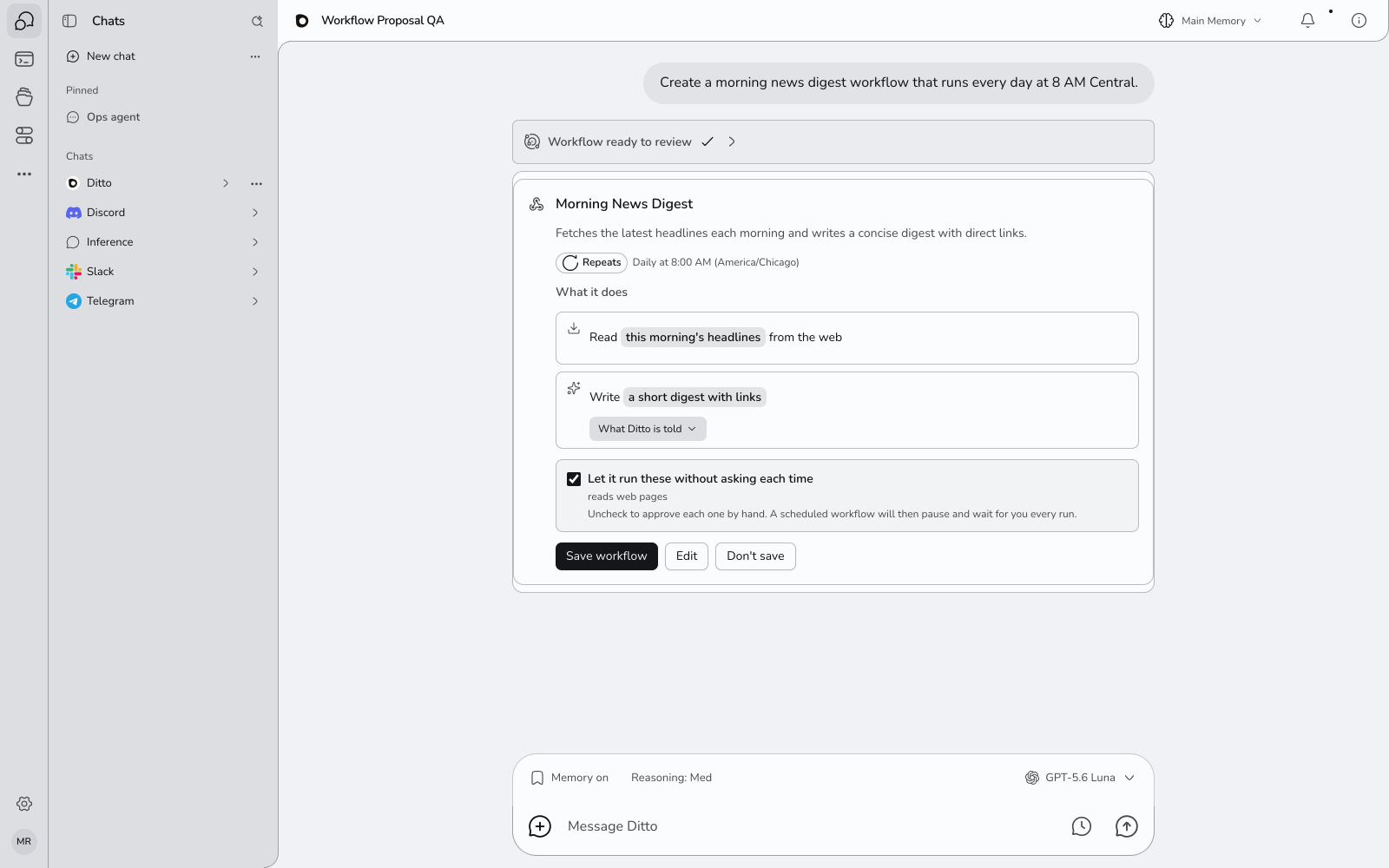
If the workflow would do something that normally needs your approval, the card has a ticked box, Let it run these without asking each time, listing what it covers. See approvals.
Tip: say when it should run in the same sentence (“every Monday at 9am”). Ditto fills the schedule in for you.
You can also ask Ditto what is available: “show me some workflow templates” brings up ready-made ones to set up from the chat. If you ask for a workflow you already have, Ditto shows you that one instead of making a second.
Describe It on the Workflows Page
- Open Customize → Agents & AI → Workflows.
- Press New workflow.
- Type the job in the box, with when it should run. For example: “Every Friday at 4pm, search the web for the week’s most important AI news and send me a five-point briefing with links as an alert in Ditto.”
- Press Draft it.
While it drafts, Ditto shows what it is doing: understanding what you asked for, writing the steps, and checking it does what you asked. Then the draft opens as an outline.
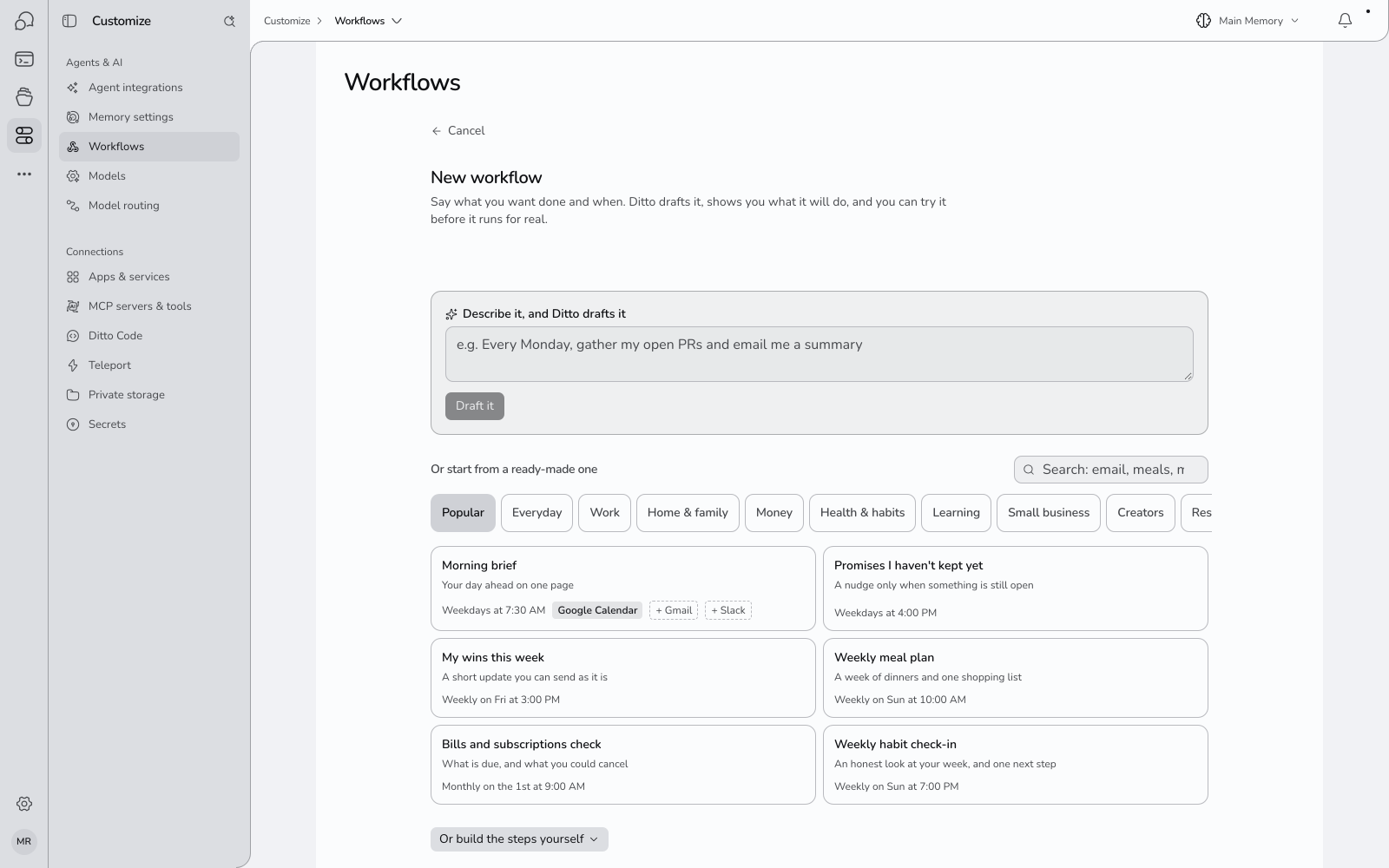
From here you can change it, try it, and press Create workflow.
The draft is saved as you go. If you leave, it waits in your list marked Draft, with Continue editing.
If Ditto Cannot Build What You Asked
Sometimes a job needs something Ditto does not have yet. It says so instead of quietly building something else.
- An app is not connected. You see Ditto can’t build this yet, a line such as “To read your email, connect Gmail first”, and a Connect button. Connect the app and draft again.
- The request is too open. You see Ditto needs one thing first and one question. Answer it in your own words and press Answer.
- Part of it is not possible. The draft opens with a Good to know note saying what it does instead.
If you create a workflow while one of its apps is not connected, runs stop at the step that needs it until you connect it.
Start from a Ready-Made Workflow
The New workflow screen lists ready-made workflows under the description box. Popular shows first. The other categories are:
Everyday · Work · Home & family · Money · Health & habits · Learning · Small business · Creators · Research & writing · For developers
- Pick a category, or search.
- Choose a workflow. It opens as an outline.
- Change anything you like, then press Create workflow.
Each card says when the workflow runs (“Weekdays at 7:30 AM”, or “When you run it”) and which apps it uses:
- A solid label, such as Google Calendar, is an app the workflow needs. If it is not connected yet, the card has a Connect button.
- A dashed label, such as + Gmail, is optional: the workflow uses it if you have connected it.
Save a Chat as a Workflow
Rolling out: this is not on for every account yet. If you do not see Save as workflow, ask Ditto in the chat instead: “make this a workflow that runs every Monday”.
If Ditto has just done a task you will want again, turn the chat into a workflow.
- Do the task in chat once.
- Press Save as workflow. It appears above a reply where Ditto used tools to do the work, and Ditto also offers it under longer tasks (“Want to do this again later? Save it as a workflow.”). Make a workflow from this chat in the chat’s menu does the same for the whole chat.
- Ditto drafts a workflow that does what the chat did, and opens it for you to review.
- Press Create workflow.
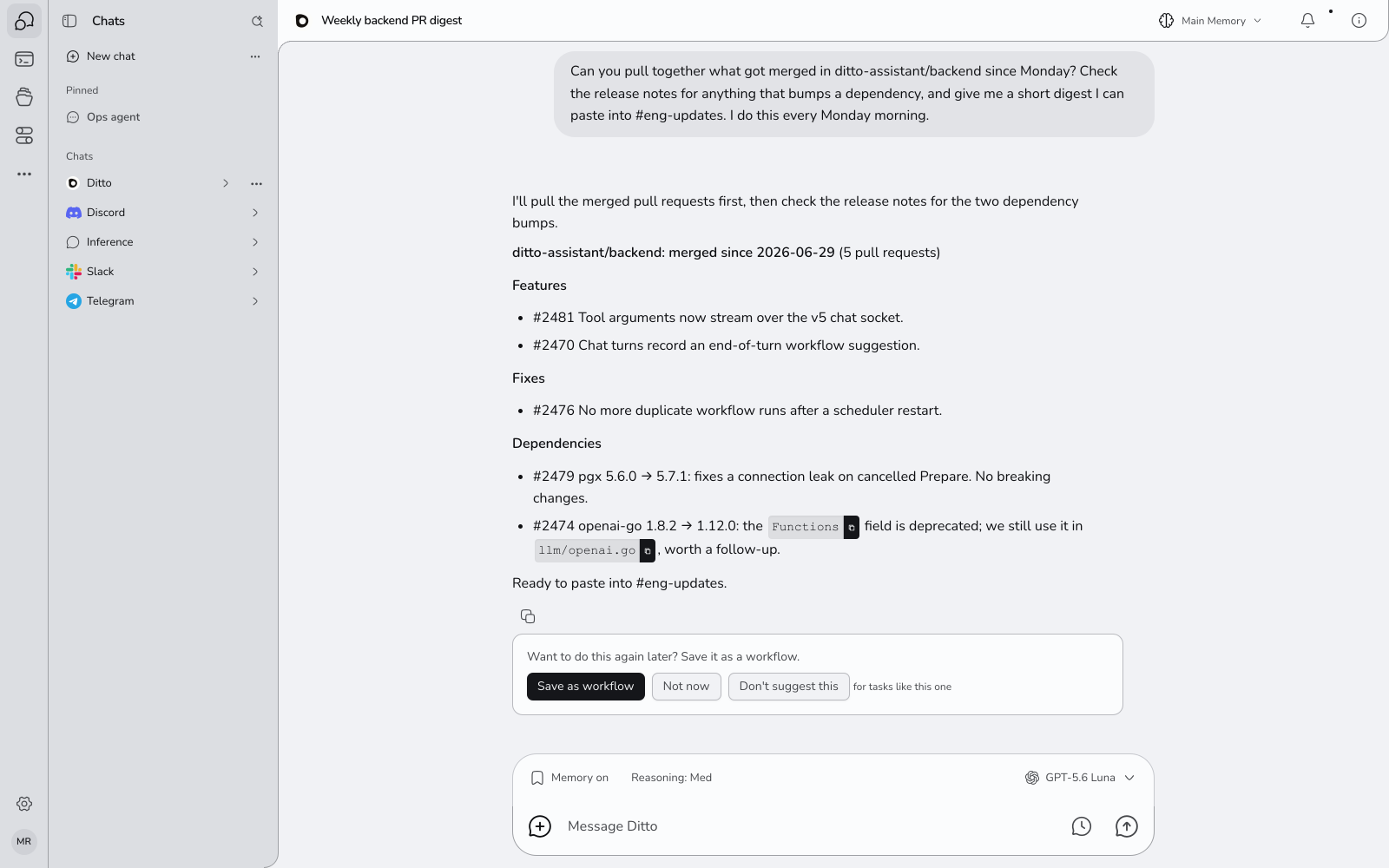
Anything that would change from run to run becomes an input you can set, such as how many results you want. After the workflow’s first real run, Ditto compares the result with what the chat produced and tells you if it fell short.
Things That Change Each Time
Some workflows need a value when they run: a topic, a name, a number. Ditto calls these things that change each time. Each one can have a usual value, and each has a kind, which decides how you fill it in:
| Kind | You fill it in by |
|---|---|
| Text | Typing a line |
| Long text | Typing a few lines |
| One of a list | Picking one choice |
| Several of a list | Picking any number of choices |
| Date | Picking a day |
| Number | Typing a number |
| Yes or no | Picking yes or no |
To set the kind, open the workflow’s editor and find Things that change each time. For a list, type the choices.
- When you press Run now on a workflow that runs only when you start it, Ditto asks for them with a short form.
- A scheduled run cannot ask, so it uses the usual value. A scheduled workflow cannot be created until every required one has a usual value.
- Your own email address is filled in for you.
A workflow can also ask you something partway through a run. See Workflows That Ask You.