Bring the context you already built elsewhere into Ditto. For ChatGPT, prefer the full export ZIP: it carries richer context from your conversations. Open Settings → Import, choose where the memories should live, select a source, then upload and preview the export before anything is written.
Before you import
- Download or prepare the source file using the matching guide below.
- Open Settings → Import in Ditto.
- Use Importing into to choose your main memory or another graph.
- Select the source that matches the export.
- Upload the file or choose the folder, then select Upload & preview.
- Review the count and sample before you confirm the import.
Imports run in the background. Re-importing the same export is safe: Ditto uses stable source IDs to skip duplicate memories. The upload limit is 200 MiB; split larger archives and import them separately.
Choose your source
| Source in Ditto | What to prepare | Provider instructions |
|---|---|---|
| ChatGPT export (.zip) | The ZIP from OpenAI | OpenAI export guide |
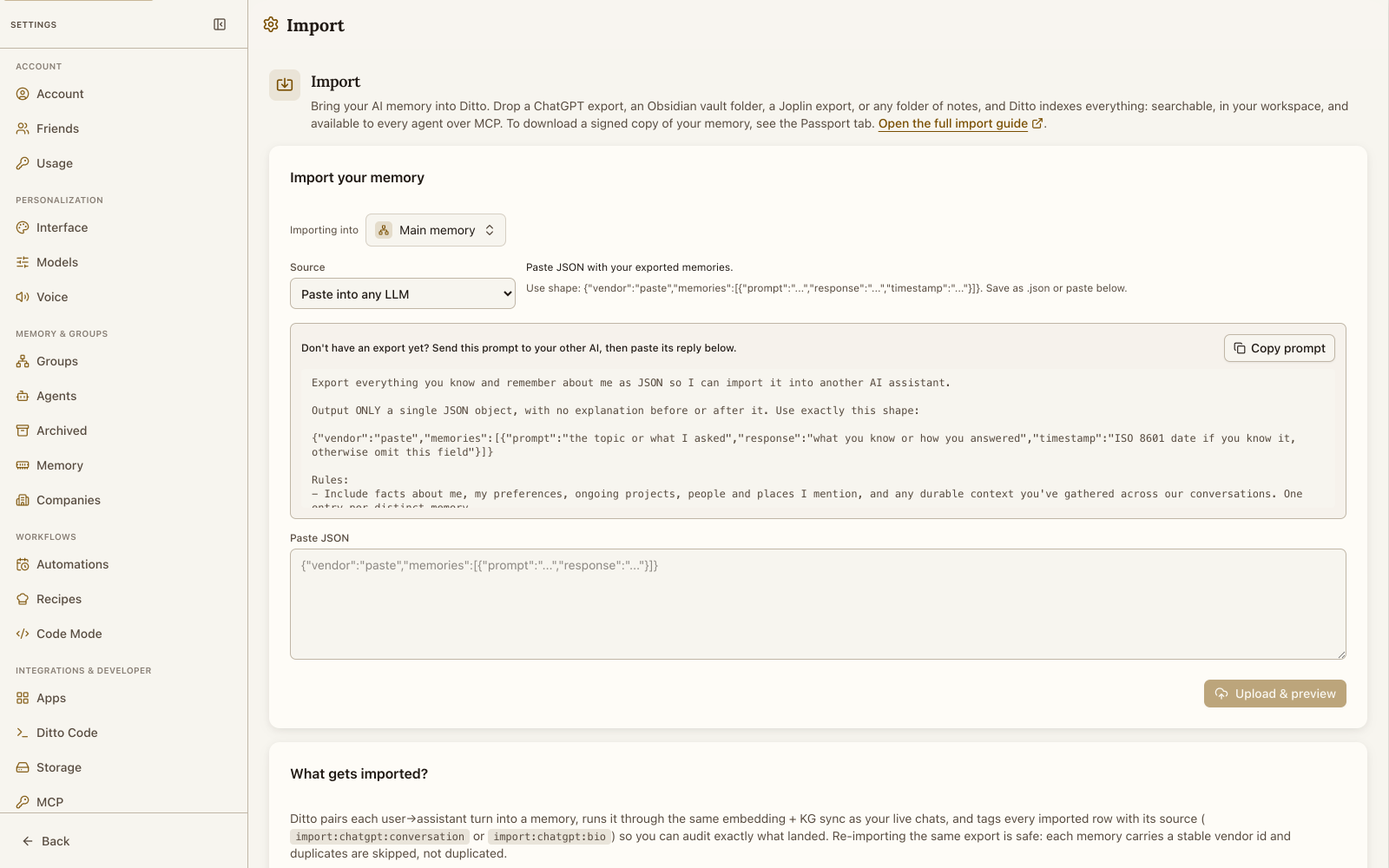
| Paste into any LLM | Ditto’s memory JSON | Works with any assistant |
| Claude export (.zip) | The ZIP from Anthropic | Anthropic export guide |
| Gemini (Google Takeout) | A Google Takeout ZIP with Gemini Apps activity | Google Gemini export guide |
| Perplexity (threads .json) | Account JSON when available, or sessions exported as Markdown | Perplexity session export guide |
| Ditto passport | A signed passport.zip | Export from Settings → Passport |
| Obsidian vault (folder) | The vault folder or a ZIP of it | Obsidian vault backup guidance |
| Joplin (.jex or folder) | A .jex file or Markdown + Front Matter folder | Joplin import and export guide |
| Markdown / notes (.zip) | A folder or ZIP of .md and .txt files | Notion Markdown export guide |
| Google Keep (Google Takeout) | A Google Takeout ZIP or extracted Keep folder | Google Keep export guide |
| Apple Notes (folder) | A folder of Markdown exports | Apple Notes export guide |
ChatGPT export (.zip)
This is the best path for moving your complete personal ChatGPT history.
- Sign in to ChatGPT on the web.
- Open your profile menu, then Settings → Data Controls.
- Under Export Data, select Export, then confirm.
- Open the email from OpenAI and download the ZIP. The download link expires after 24 hours; OpenAI says the export can take up to seven days to arrive.
- In Ditto, choose ChatGPT export (.zip) and drop the ZIP into the upload area. Do not unzip it first.
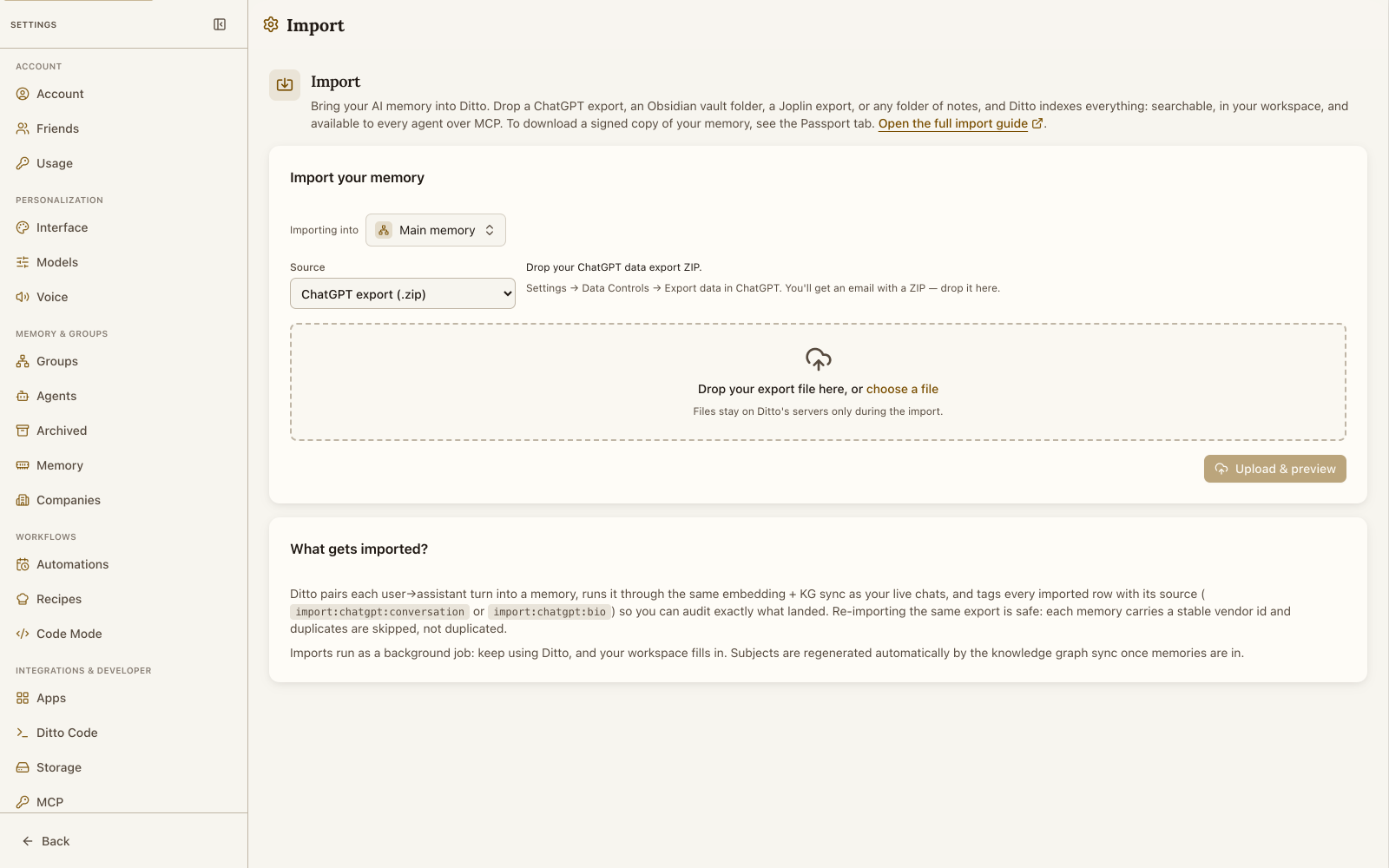
OpenAI does not provide this account export for logged-out sessions or ChatGPT Business and Enterprise workspaces. See OpenAI’s current eligibility and troubleshooting notes.
Claude export (.zip)
- Open Claude on the web or in Claude Desktop. Mobile apps cannot start an export.
- Select your initials, then Settings → Privacy → Export data.
- Wait for Anthropic’s email and download the ZIP while the 24-hour link is active.
- In Ditto, choose Claude export (.zip) and upload the ZIP.
Individual Claude users and Team plan Primary Owners use the Privacy page. Enterprise Primary Owners export organization data from Settings → Data management. See Anthropic’s export guide.
Gemini (Google Takeout)
- Open Google Takeout with the same Google Account you use for Gemini.
- Select Deselect all.
- Select My Activity, open All activity data included, deselect everything in that dialog, then select Gemini Apps.
- Select Next step, choose Export once and a
.ziparchive, then create the export. - Download the archive from Google’s email.
- In Ditto, choose Gemini (Google Takeout) and upload the ZIP.
Selecting the separate Gemini Takeout product adds Gems data. Chat history lives under My Activity → Gemini Apps. Google’s Gemini export guide explains both selections.
Perplexity (threads .json)
Perplexity documents exporting an individual session as Markdown, PDF, or DOCX, but does not currently document a self-service bulk JSON export for every account.
- If Perplexity gives your account a JSON data export, choose Perplexity (threads .json) in Ditto and upload the
.jsonor.zipfile. - Otherwise, open each session, use Export → Markdown, place the
.mdfiles in one folder, and import that folder with Markdown / notes (.zip). - For a smaller set of durable facts, use Paste into any LLM instead.
See Perplexity’s session guide for its current export menu. Avoid giving unknown browser extensions access to private thread history just to create a bulk export.
Paste into any LLM
Use this when a provider has no export, when you only want the assistant’s durable memory of you, or when a source file is not supported.
- In Ditto, choose Paste into any LLM.
- Select Copy prompt.
- Send the prompt to the other assistant.
- Paste its JSON reply into Ditto and select Upload & preview.
Ditto accepts this shape:
{
  "vendor": "paste",
  "memories": [
    {
      "prompt": "the topic or what I asked",
      "response": "what the assistant knows or how it answered",
      "timestamp": "2026-07-16T12:00:00Z"
    }
  ]
}
The timestamp is optional. Ditto also removes a surrounding JSON code fence or a short line of assistant preamble before parsing.
Ditto passport
Use a passport to move a signed copy of a Ditto graph into another account or graph.
- In the source Ditto account, open Settings → Passport.
- Choose the graph under Exporting from.
- Select Download passport.zip.
- In the destination account, open Settings → Import, choose Ditto passport, and upload
passport.zip.
Keep the archive intact. Its manifest and Ed25519 signature make changes detectable.
Obsidian vault (folder)
Obsidian vaults already live as local Markdown files, so there is no separate export job.
- In Obsidian, identify the vault you want to move. A vault is a folder on your computer.
- In Ditto, choose Obsidian vault (folder), then pick the vault folder. You can also upload a ZIP copy of the vault.
- Ditto zips folders in your browser, skips the
.obsidianconfiguration folder, and preserves frontmatter titles, tags, and wikilinks where possible.
Obsidian’s own backup guidance says a vault backup can be as simple as copying or zipping the vault folder. See Obsidian security and privacy.
Joplin (.jex or folder)
- In Joplin Desktop, choose File → Export all.
- Choose JEX for a lossless archive, or Markdown + Front Matter for a folder of readable Markdown files.
- In Ditto, choose Joplin (.jex or folder).
- Drop the
.jexfile, or pick the Markdown export folder.
JEX preserves notes, notebooks, tags, resources, and metadata. Ditto turns notebooks into sessions. See Joplin’s import and export guide and its Markdown + Front Matter format.
Markdown / notes (.zip)
Choose this for any folder of .md or .txt notes, including Logseq graphs, plain-text archives, and Notion Markdown exports.
- Put the notes into one folder, preserving subfolders if they are meaningful.
- In Ditto, choose Markdown / notes (.zip) and pick the folder, or upload a ZIP of it.
For Notion, open Settings → General → Export all workspace content, choose Markdown & CSV, and import the downloaded ZIP or its Markdown folder. Ditto reads Markdown and text notes; database-only CSV files are not imported by this source. See Notion’s export guide.
Google Keep (Google Takeout)
- Open Google Takeout, then select Deselect all.
- Select Keep, choose Next step, and create a
.zipexport. - In Ditto, choose Google Keep (Google Takeout) and upload the Takeout ZIP. You can also pick the extracted
Takeout/Keepfolder.
Each Keep note becomes a memory. Google’s export includes note text, lists, attachments, colors, pinned or archived state, collaborators, and labels; Ditto imports the supported note content from the JSON files. See Google’s Keep export guide.
Apple Notes (folder)
Apple Notes on current macOS can export individual notes as Markdown.
- On Mac, open a note and choose File → Export as → Markdown.
- Save the notes you want to move into one folder.
- In Ditto, choose Apple Notes (folder) and pick that folder, or upload a ZIP of it.
Apple does not currently document a bulk Markdown export. Repeat the export for each note you want to import. PDF exports are not accepted by this source. See the Apple Notes export guide.
What Ditto creates
For conversation exports, Ditto pairs each user and assistant turn into a memory. For note sources, each note becomes a memory. Imported content is searchable in the destination graph and available to agents with access to that graph.
After previewing, confirm the import only if the destination and counts look right. Importing writes a permanent copy into that graph; there is no one-click undo for the whole batch.
Troubleshooting
- The ZIP is too large: split it into archives under 200 MiB and import each one.
- No notes were found: folder imports accept
.mdand.txt; convert unsupported files first. - The provider changed its menu: use the first-party link beside that source above, then return to Settings → Import with the resulting file.
- You only need a few facts: use Paste into any LLM instead of moving an entire history.
- You chose the wrong destination: reset before confirming, switch Importing into, and upload again.