
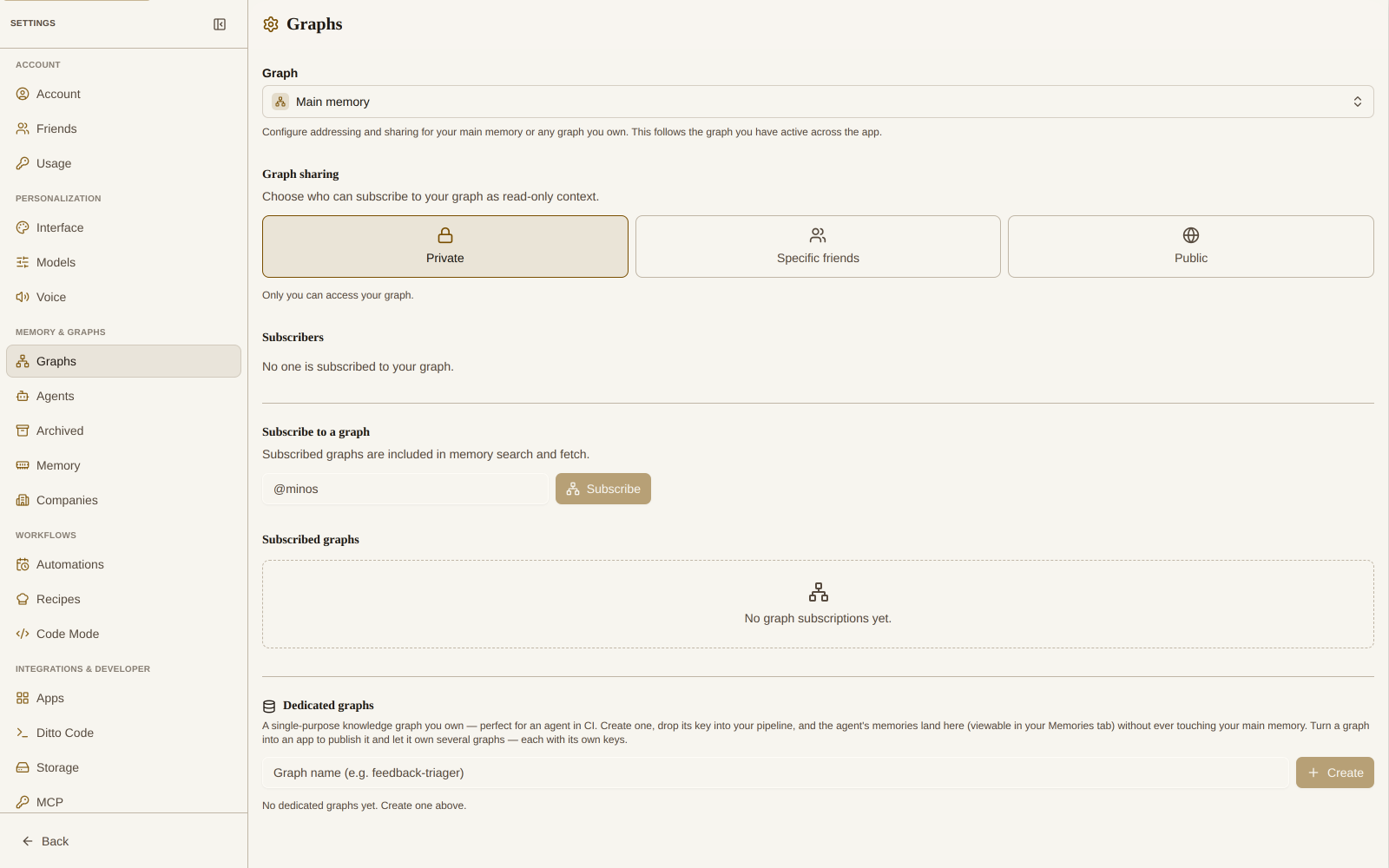
A dedicated graph is a single-purpose knowledge graph that you own, separate from your main memory. You create one, get an API key scoped to just that graph, and hand the key to an agent or a CI pipeline. The agent’s memories land in the dedicated graph — and you can browse them from your Memories tab — while your main memory stays clean.
It’s the natural payoff of Ditto’s multi-graph model, and it’s built for developers: so easy an agent could do it.
Create and manage dedicated graphs in Settings → Graphs.
Why a dedicated graph?
Say you build an agent — a user-feedback triager that runs in GitHub Actions, an incident summarizer, a docs bot. You want it to remember things across runs, but you don’t want a thousand machine-written memories mixed into your personal knowledge graph.
A dedicated graph gives the agent its own memory:
- Isolated — the agent writes only to this graph, never your main memory.
- Yours — it shows up in your Memories tab, so you can read, search, and curate what the agent stored.
- Keyed — the scoped key is safe to drop into CI secrets; even if it leaks, it can only touch this one graph.
Create a dedicated graph
- Open Settings → Graphs.
- Under Dedicated graphs, enter a name (e.g.
feedback-triager) and click Create. - Click Generate key on the new graph. Copy the key — it’s shown once.
That key is a normal Ditto MCP/CLI key (ditto_mcp_…), scoped to this graph.
You can also create one from the command line — handy when an agent is setting itself up:
heyditto graphs create feedback-triagerThis provisions the graph and returns a claim URL. Open it to mint the key
and copy ready-made setup commands (see Wire it into CI
below). It’s the same page an agent hands you after calling create_dedicated_graph.
Multiple keys, scoped tools, and revoking
A graph can have more than one key — mint a separate key per pipeline or environment so you can rotate or revoke them independently. Each key is listed under its graph; click the trash icon to revoke one immediately (anything using it stops working at once).
When you generate a key, click Tools to choose exactly which
MCP tools it may call. All tools are enabled by default; the
list is searchable, so you can narrow a CI key down to, say, only
save_memory + search_memories for a minimal, least-privilege agent. Leaving
everything checked grants the full tool set.
Wire it into CI
Right after you mint a key — and on the claim URL an agent hands you — Ditto shows a setup panel with one-click copy commands for each platform, so you don’t have to hand-write any of this:
- GitHub Actions — a
gh secret setcommand. If you’ve connected the GitHub app, pick the target repo from a searchable list; the secret name defaults toDITTO_API_KEYand is editable. - AWS / Google Cloud —
aws secretsmanager/gcloud secretscommands to store the key. - MCP — a client config block with the server URL and
Authorization: Bearerheader for any MCP client. - ditto-cli — a persistent
heyditto login+heyditto savesnippet.
Under the hood it’s just dropping the key into your pipeline’s secrets and pointing your agent at Ditto. For a GitHub Actions job running an OpenCode/agent step:
# .github/workflows/triage.yml
jobs:
  triage:
    runs-on: ubuntu-latest
    env:
      DITTO_API_KEY: ${{ secrets.DITTO_FEEDBACK_TRIAGER_KEY }}
    steps:
      - run: npx opencode run "triage new user feedback"
Because the key is scoped, the agent doesn’t even need to choose a graph — every memory it saves goes to the dedicated graph by default, and any attempt to write elsewhere (including your main memory) is denied.
Using the CLI directly works the same way. Save the key once with heyditto login
so it persists across steps (rather than re-exporting it each run):
heyditto login "ditto_mcp_…"   # your dedicated-graph key, stored in config
heyditto save "Top complaint this week: confusing onboarding"
heyditto search "onboarding"
See the Ditto CLI and MCP Server docs for the full command set.
View it in your Memories tab
Open the Memories tab and use the graph selector at the top. Your dedicated graphs appear alongside Main memory — switch to one to read and search exactly what your agent has been storing. Nothing here is mixed into your main graph.
Graphs and apps: make it an app
A dedicated graph and a Ditto app are the same underlying thing at two levels of power:
- A graph is a single knowledge graph you own — with its own scoped MCP keys, sharing, and transfer.
- An app is a graph that also has app-powers: it can be published, and it can own several graphs, each its own KG with its own keys.
On any standalone graph, choose Make it an app (Settings → Graphs). This is additive — the graph stays exactly where it is, keeps its keys and sharing, and simply gains app-powers. (The first time, it also enables your free Ditto developer org; you pick its name then.) Nothing is moved or lost.
Once a graph is an app, use New graph on it to provision more graphs under it
— perfect when one product needs several isolated graphs (e.g. feedback,
incidents, docs), each with a separate CI key. From the CLI:
heyditto graphs create incidents --app my-productor from an agent, call create_dedicated_graph with app: "my-product". The
graphs you own — standalone and grouped under their apps — all live together in
Settings → Graphs.
Rename a graph’s address
Every graph has a handle-namespaced slug — its address, like a GitHub repo
(@you/feedback-triager). Rename it anytime from Settings → Knowledge Graphs;
the old address keeps working via a permanent redirect, so existing links and
subscriptions don’t break.
Share a graph
Dedicated graphs are built on Ditto’s multi-graph foundation, so the same sharing powers as your main memory apply per graph: keep it private, share it with specific friends, or make it public so anyone can subscribe to it as read-only context. Configure this per graph in Settings → Knowledge Graphs — see Knowledge Graph Sharing.
Transfer ownership
You can hand a graph to another Ditto account — for example, moving a project graph from your personal account to a company account. It works like a GitHub transfer, with no shareable link:
- On the graph in Settings → Developer, click Transfer and type the recipient’s username or email.
- The recipient sees the incoming transfer in their own Ditto and accepts or denies it. If email is configured, they also get a transactional email with approve/deny actions.
- On accept, ownership and all of the graph’s memories move to them atomically; on deny (or if you cancel first), nothing changes.
Archive or delete a graph
When a graph has served its purpose, manage it from its row in Settings → Developer:
- Archive delists the graph but keeps it (and its keys) intact — reversible at any time.
- Delete permanently removes the graph: all of its memories and content, plus its CI/agent keys. This can’t be undone, and your other graphs (including your main memory) are unaffected.
If an app provisioned a graph for you and you just want to remove your own data in it without affecting the app, use Delete on that graph under Settings → Knowledge Graphs → App graphs instead.
Related
- Building Apps on Ditto — the full developer surface.
- App Permissions — how memory scopes work.
- Knowledge Graph Sharing — visibility and subscriptions.