This page covers what happens after a workflow exists: when it runs, where its results go, and what to do when a run needs you.
When It Runs
In the editor, under When it runs, choose one:
| Choice | What it means |
|---|---|
| Only when I start it | It runs when you press Run now |
| Once, at a time | It runs one time, at the date and time you pick |
| On a schedule | It repeats: Hourly, Daily, Weekly, Monthly, or Custom |
A workflow with a single step that Ditto thinks through has a fourth choice, In a chat, as a conversation. That makes it a guide.
- Times are in the timezone of the device you set the schedule on. The editor shows which (“Times are in America/Denver”).
- Custom takes a cron expression, for schedules the other choices cannot express. A schedule can run at most every 10 minutes.
- If you said when in your description (“every Friday at 4pm”), the schedule is already filled in.
You can also change the schedule by asking in chat: “run my weekly report on Mondays instead”.
Scheduled runs happen on Ditto’s servers. Your device does not need to be on.
Run It Now
Press Run now on the workflow’s row, on its page, or on its card in chat. The run page opens and shows each step as it finishes.
From a chat, type @, pick the workflow and send: it starts, and its card in the conversation follows the run. See Workflows in Chat. If you only ask in words (“run my morning brief”), Ditto shows a card with Run now for you to press.
Read a Run
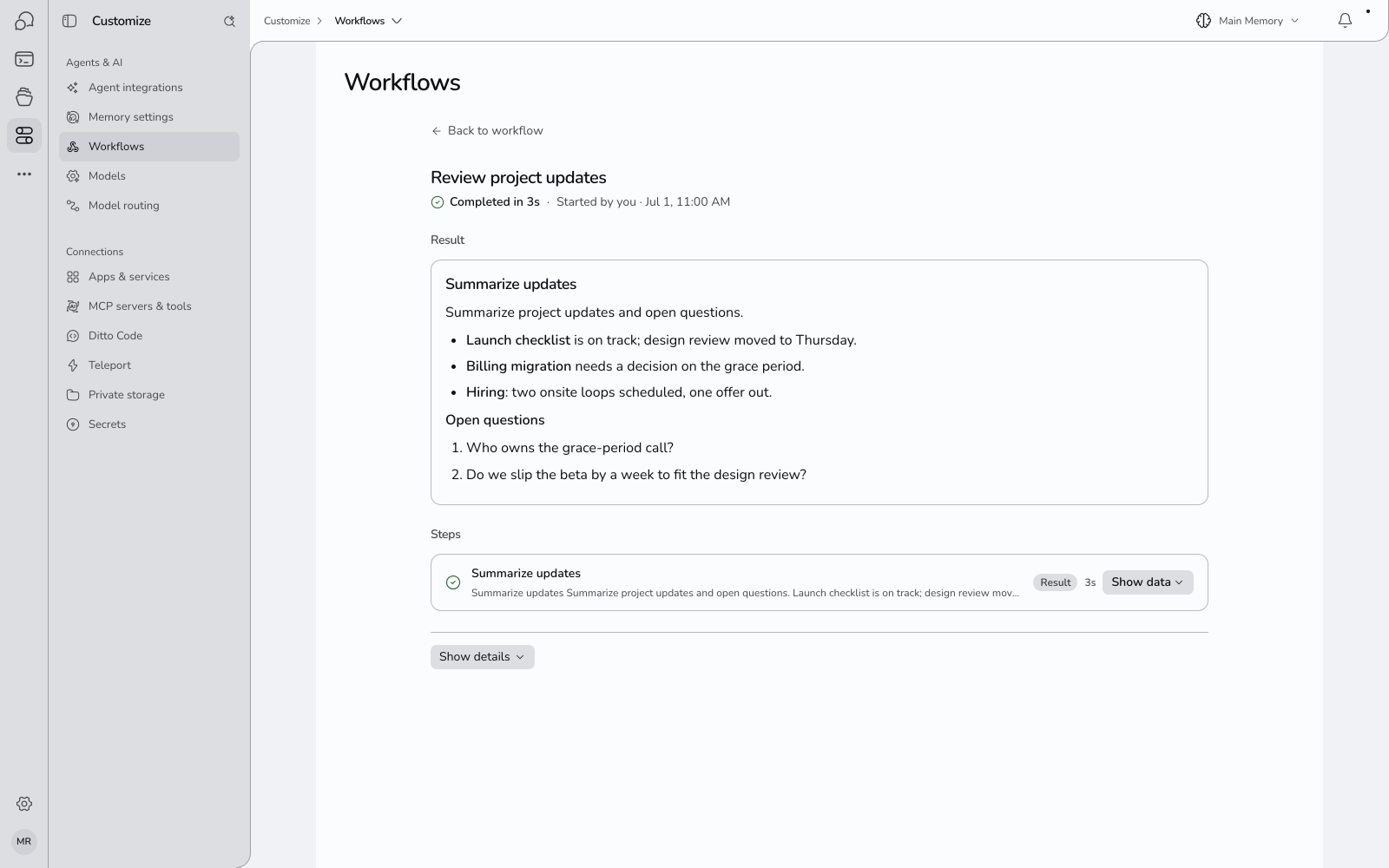
A run’s page has, from the top:
- How it went. “Completed in 30s”, “Failed after 3s”, “Waiting for your approval”, “Waiting for your answer”, or “Finished, but found nothing”, and whether you or the schedule started it.
- Result. What the workflow produced, with any files it saved. Under it Ditto may list Suggested next steps: things worth doing about the result, each with Do it.
- What it did. The outline, with what each step came back with.
- Steps. Every step and how long it took. Press Show data on a step to see exactly what it returned.
- Show details. Cost and a timeline.
Run History
Open a workflow from the list to see its page: its schedule, when it next runs, and every past run with its cost. Press a run to open it.
A run that finishes cleanly does not send you a notification. If you want to be told, make the workflow’s last step send you an alert or an email.
Pause, Resume, Delete
- Pause stops scheduled runs, and cancels a run that is in progress. Nothing is deleted, and Run now still works. A workflow that runs only when you start it has nothing to pause.
- Resume turns the schedule back on.
- Delete asks you to confirm. Deleting a scheduled workflow from the Workflows page removes its schedule and keeps the workflow, which then runs only when you start it; delete it again to remove it. Delete on a workflow’s card in chat removes the workflow, its schedule and its past runs in one go. Neither can be undone.
Asking in chat (“pause my morning brief”) shows a card to confirm; nothing changes until you press it.
Approvals
Ditto does not send, post, change or delete things in the outside world unless you said it may. What counts is listed under what Ditto will and will not do on its own.
When you save a workflow, Ditto tells you what it will do without asking:
- On the card in chat: a ticked box, Let it run these without asking each time, with the list under it. Untick it and every run will wait for you at those steps.
- In the editor: a line, Runs on its own without asking, naming each thing, and Creating the workflow allows this. To make a step ask instead, open More options and press Ask first on it.
If the card says a run will pause for your OK before it does something, that action is not covered by the box.
When a run is waiting:
- The Workflows page shows a banner, A workflow is waiting for your approval, and the workflow’s row says Needs you.
- You also get a notification, Workflow needs your approval, and one reminder a day later if it is still waiting.
- Open the run. Under Waiting for your approval, press Apply to let it happen this once, Always allow to let this step do it from now on, or Reject.
A waiting run does not continue by itself. If nobody answers within 2 days, the approval expires and the run fails.
A run can also wait for your answer to a question. That waits 2 days too, then goes on with what you answered last time if there is one.
A try never sends or posts anything.
When a Run Goes Wrong
A failed run says which step stopped, in plain words. Show error details has the technical reason. Some failures offer Run again.
To fix it:
- Ask in chat: “my weekly report failed on its last run, fix it”. Ditto is given the error from that run and changes the step that broke. The change has an Undo.
- Or open the workflow, press Edit, and change it yourself.
What the Workflows page tells you:
| What you see | What it means | What to do |
|---|---|---|
| Finished, but found nothing | Every step ran, and there was nothing to report | Press Fix it on the run, or check the search or the time window is not too narrow |
| First run check on a run | A workflow saved from a chat produced less than the chat did | Open the run and press Fix it |
| Needs you | A run is waiting for your approval | Open the run and choose Apply, Always allow or Reject |
| Waiting for your answer | A run stopped to ask you something | Answer on the run’s page, in the chat, or in the notification |
| failing | Recent runs failed | Open the last run to see why |
| paused · failing | Ditto paused it after 5 failed runs in a row | Fix the problem, then Resume |
| can’t run · balance empty | Your account has no credits, so runs are skipped | Add credits |
| Ditto can’t build this yet | The job needs an app that is not connected | Connect the app, then draft again |
Limits
| Workflows per account | 100 |
| Steps in one workflow | 20 |
| Shortest schedule | Every 10 minutes |
| One step | 3 minutes by default before it is stopped |
| Waiting for approval | 2 days, then the run fails |
| Waiting for an answer | 2 days, then your last answer or a stop |
| Automatic pause | After 5 failed runs in a row |
A scheduled workflow’s page lists its own limits under More settings.
Questions
Where do results go? Always to the run’s page. A workflow can also send you an alert in Ditto, email you, post to an app you connected, or save a file or a memory. That is its last step, and you choose it when you describe the workflow. It cannot text or call a phone.
Does a workflow use my memories? Yes, when a step searches them. That is how a meal plan knows what you like.
Can a workflow start when something happens, like a new email? No. It starts when you start it, or on its schedule. A workflow that runs every 10 minutes and checks for new mail is the nearest thing.
Which model does it use? Auto, unless you pick one for a step in the graph editor. See AI Models in Ditto.
Can I ask Ditto about my workflows? Yes. Ask “what workflows do I have?”, “did my morning brief run?” or “what does my weekly report do?”.
What does a run need? Credits in your account. Trying a workflow is free.