# Workflows in Chat, and Guides
> Start a saved workflow from any chat with @, answer its questions and read its result in the conversation, and use guides: workflows that run as a conversation.
---
# Workflows in Chat, and Guides
You do not have to leave a conversation to use a [workflow](/docs/workflows). Type **@**, pick the workflow, and it runs right there: its questions, its progress and its result all show in the chat, and Ditto can talk with you about the result afterwards.
This page also covers **guides**, which are workflows that run as a conversation instead of as fixed steps.
## Start a Workflow from a Chat
1. In any chat, type **@** in the message box.
2. Under **Run a workflow**, pick the one you want. Keep typing to narrow the list.
3. Send the message. You can add a few words after the name if you like, but you do not have to.
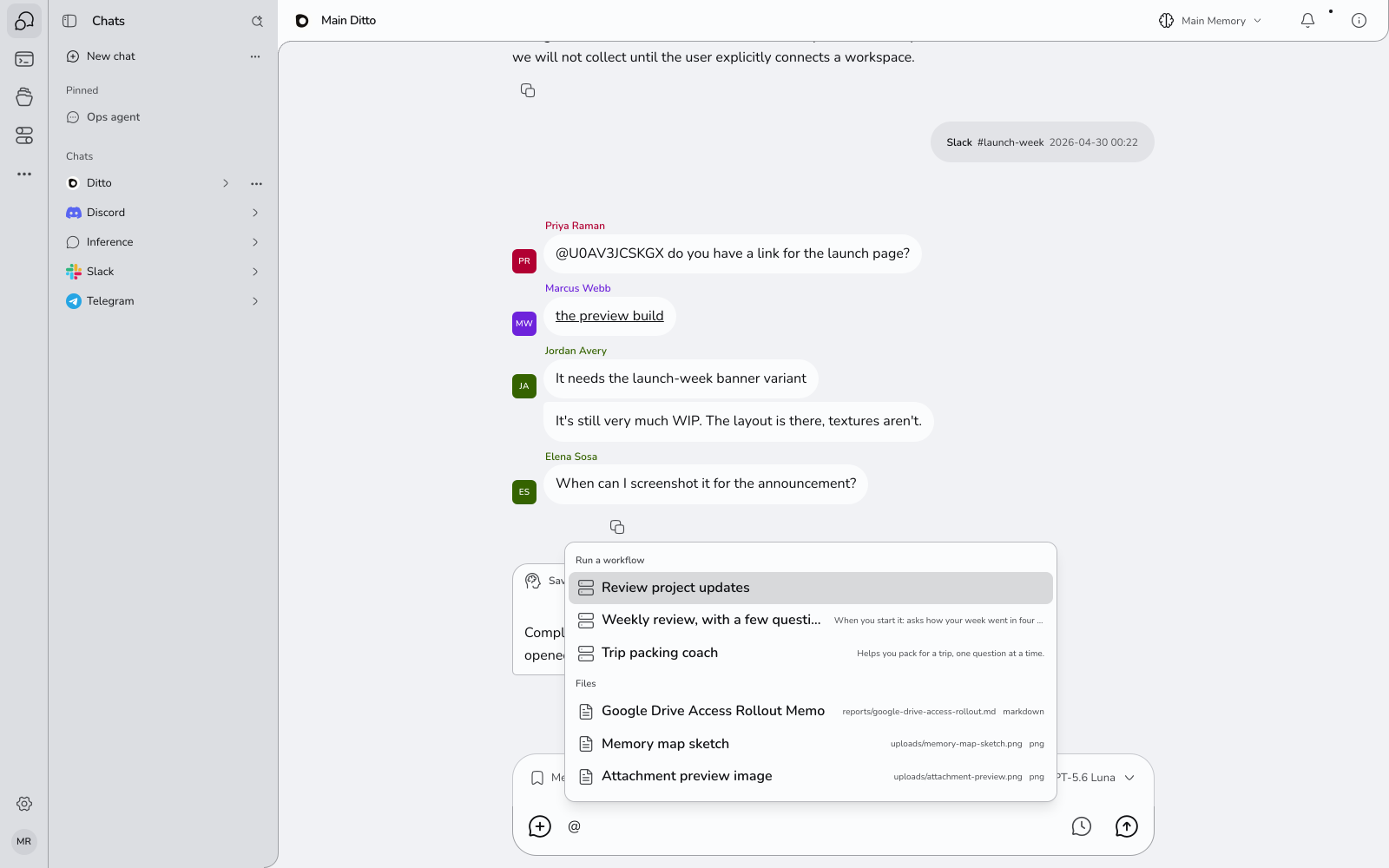
Ditto starts the workflow and puts a card for the run in its reply.
Picking the workflow yourself is what starts it. If you only ask in words ("run my morning brief"), Ditto shows a card with **Run now** for you to press instead.
## Follow It on the Card
The card follows the run while you carry on chatting:
- While it works, the card names the step it is on.
- If the workflow [asks you something](/docs/workflow-questions), the form appears on the card. Answer it and press **Send answer**.
- When it finishes, the result is on the card, with any file it saved. **Open run** takes you to the run's page for the detail.
A run you start from a chat does not also send you an alert about its question or its result. They are already in front of you.
## Talk About the Result
The chat keeps its context. After the run, ask about it in the same conversation:
```
What goal did that review set for next week?
```
```
Turn that into three bullet points I can paste into Slack.
```
Ditto knows which workflows were started in this chat, whether each is still running, waiting or finished, and what it produced.
## If a Workflow Needs Something First
Some workflows need [a value before they start](/docs/creating-workflows#things-that-change-each-time), such as a topic. If you did not give it, the card says what is missing and has a **Run** button with the fields to fill in.
## Guides
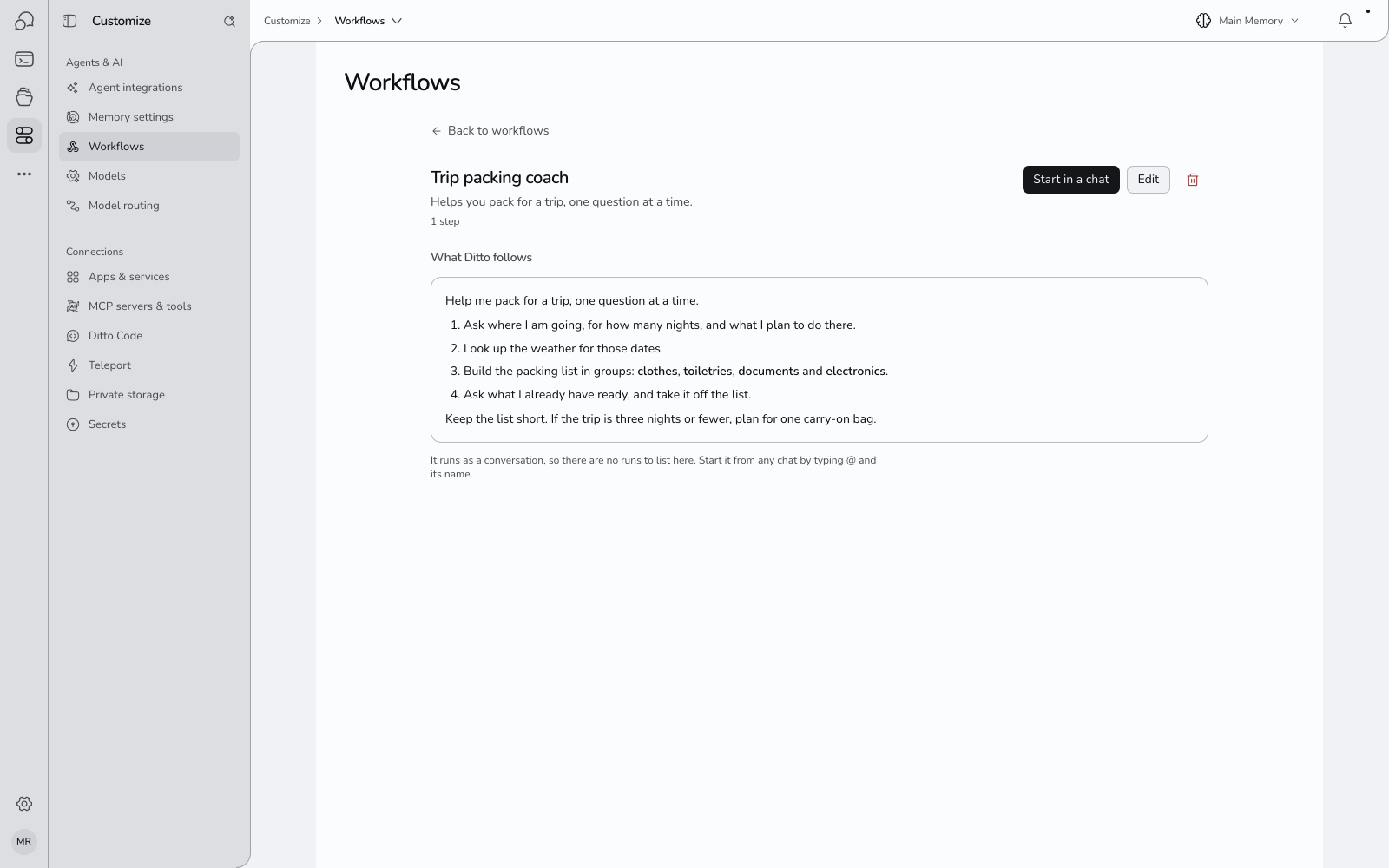
A **guide** is a workflow that runs as a conversation. Instead of steps that run by themselves, it has instructions that Ditto follows with you: what to ask, in what order, what to produce, when to stop. Use one for jobs that are a back-and-forth by nature: planning a trip, preparing for a hard conversation, a weekly check-in.
### Start a Guide
- On the guide's page, press **Start in a chat**. Ditto opens the chat and starts it.
- Or in any chat, type **@** and pick the guide, like any other workflow.
A card in the reply says **Guide started**. From there you are simply talking to Ditto, and it follows the guide until the job is done. If you have something half-typed in the message box, Ditto leaves it alone and asks you to send or clear it first.
### Make a Guide
1. Open **Customize → Agents & AI → Workflows** and press **New workflow**.
2. Open **Or build the steps yourself** and write what Ditto should do in the one step: what to ask, what to make, and any rules to keep to.
3. Under **When it runs**, choose **In a chat, as a conversation**.
4. Press **Create workflow**.
You can also [import a skill](/docs/importing-skills) written for another AI agent. A skill that is a conversation becomes a guide.
### How a Guide Differs from Other Workflows
| | A workflow with steps | A guide |
| -------------------------- | ----------------------------------- | ----------------------------------- |
| Runs | By itself, step by step | As a conversation with you |
| Starts | Run now, a schedule, or @ in a chat | **Start in a chat**, or @ in a chat |
| Can run on a schedule | Yes | No |
| Has a run page and history | Yes | No. The conversation is the record |
| Try it | Yes | No. Start it and see |
| Costs | Each run, mainly the thinking steps | Like any chat |
## Where This Works
- Workflows show under **@** in ordinary chats with Ditto.
- They are not offered in a temporary chat, in a coding session, or in a chat with an agent you have limited to certain tools.
## Questions
**Does starting a workflow in chat use the chat's model?**
The reply that starts it does. The workflow's own steps use whatever the workflow uses, which is Auto unless you chose otherwise.
**I picked a workflow and nothing started.**
The card will say why: usually a value it needs first, or an app that is not connected.
**Can a guide use my apps and memories?**
Yes, the same ones the chat can.
## Next
- [Workflows That Ask You](/docs/workflow-questions)
- [Importing a Skill](/docs/importing-skills)
- [Schedules, Runs and Results](/docs/workflow-schedules-and-runs)