Ditto V2 is a ground-up redesign of the Ditto experience: one workspace where your chats, files, memories, and workflows live together, backed by the same memory system that already powers Ditto today, plus a coding-agent task queue that runs Ditto Code free, or Claude Code, Codex, Cursor, and Antigravity on your own accounts. You were invited because we want real usage and honest feedback before the public launch: this page tells you exactly what to do with your first 15 minutes.
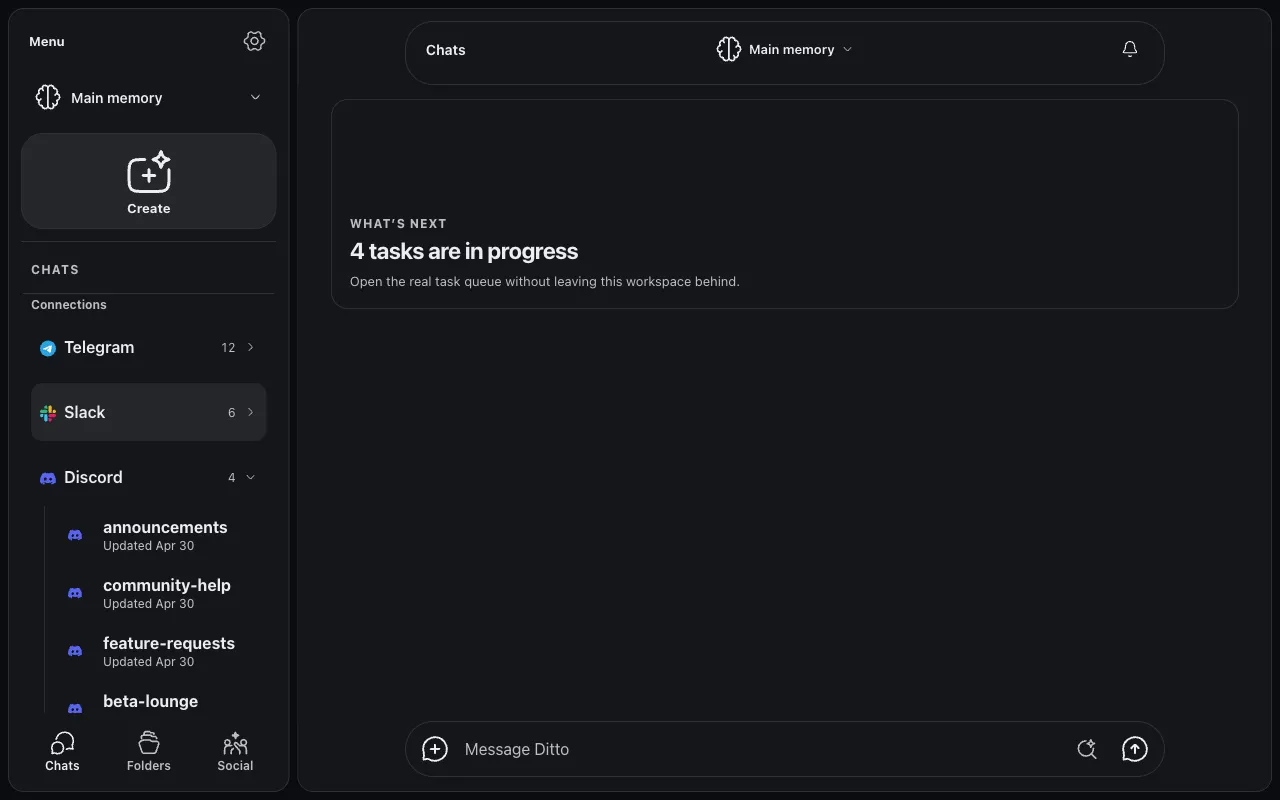
Getting access
- Open v2.heyditto.ai.
- Enter your email address. If your address has been granted early access, you’ll be taken straight to sign-in. Otherwise you’ll take a seat on the waitlist: tell your Ditto contact and we’ll wave you through.
- Sign in with the same account you use on classic Ditto. All your existing memories, files, and connections come with you. V2 is a new front door, not a new account.
Your first 15 minutes
Do these in order: each step builds on the last.
1. Connect an app you actually use
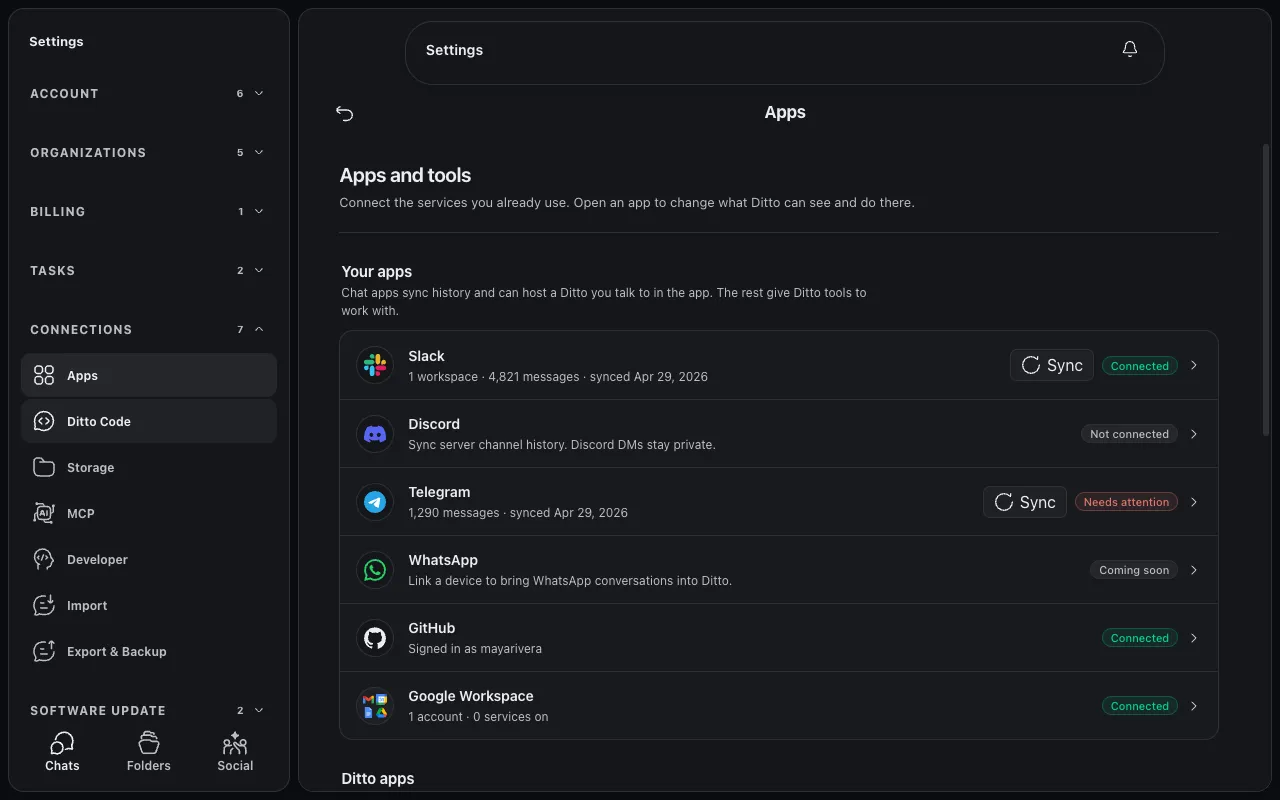
Open Settings → Connections → Apps and connect at least one platform you use daily (Slack, Telegram, or Discord). Once synced, those conversations become part of Ditto’s memory, which is what makes the next step interesting.
2. Ask three real questions
In Chats, ask Ditto three questions about your own work history: the kind you’d otherwise dig through old threads to answer:
- “What did we decide about <topic> last week?”
- “Summarize my conversations with <person> this month.”
- “What’s still open from <project>?”
Vague questions get vague answers; specific questions show off what the memory system can really do.
3. Open something Ditto hands you
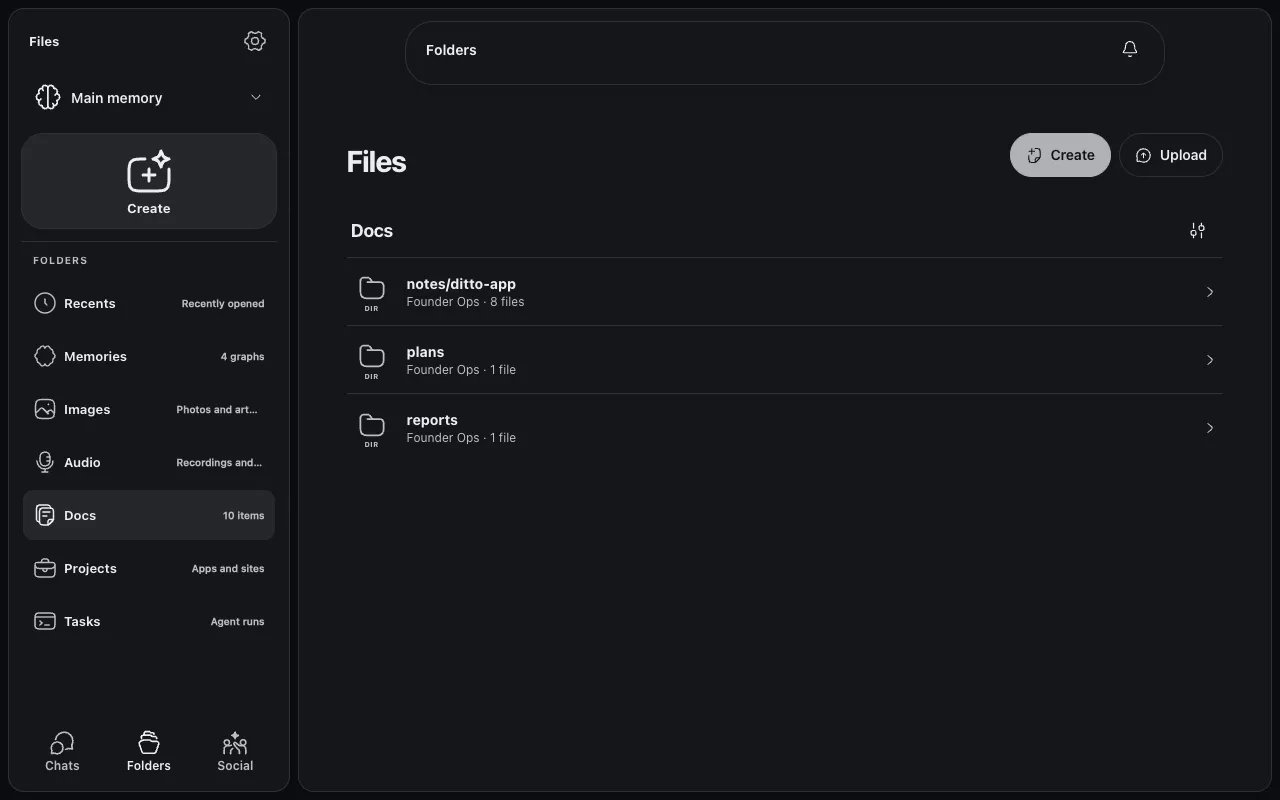
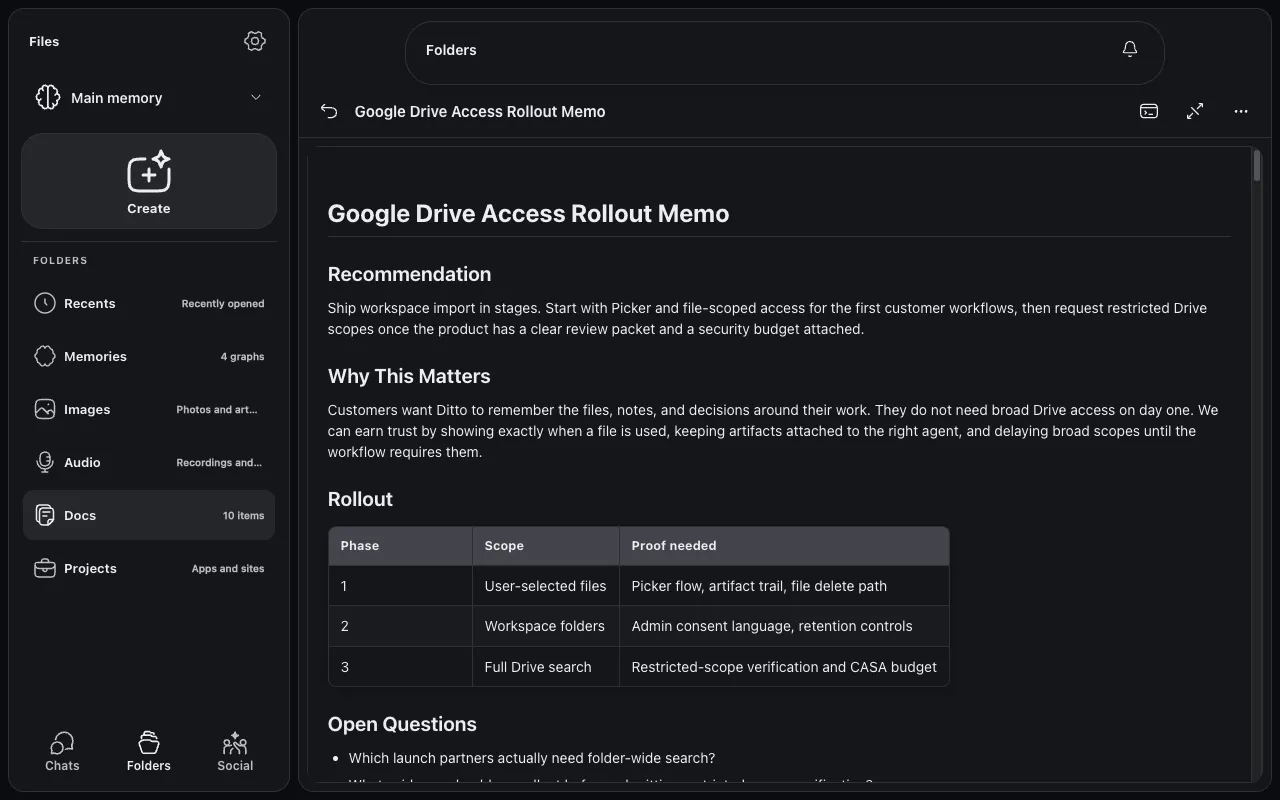
When an answer includes a file, image, or artifact, click it. It should open in the V2 previewer, in place, without kicking you out of your conversation. Try the Folders tab too and browse what Ditto has stored for you: recents, memories, images, audio, docs, projects, and your agent tasks all live there.
Anything Ditto writes or you upload opens right there (formatted docs, tables and all) without leaving the app:
4. Search across everything
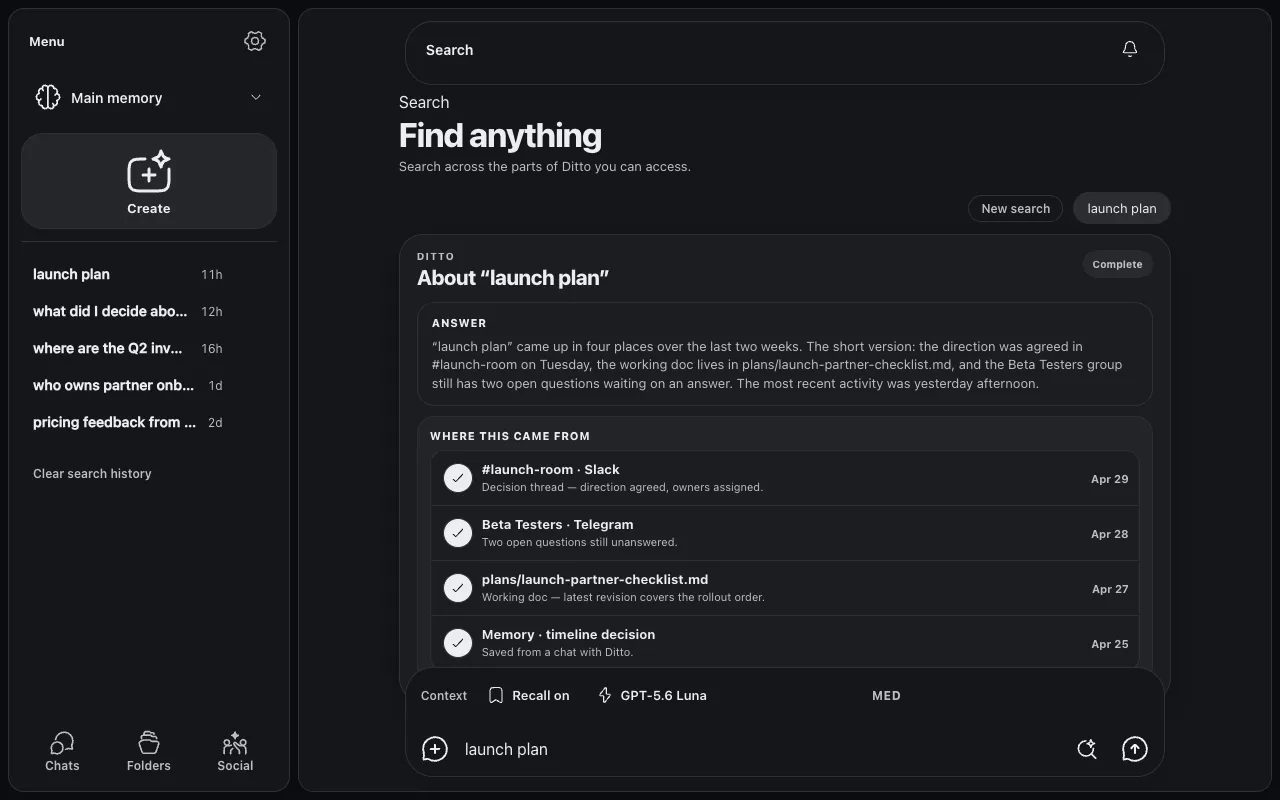
Use Search to look for something you know exists in your synced history. You get a synthesized answer with its sources laid out underneath: Slack threads, Telegram groups, docs, and saved memories in one place. Click a source to jump straight to it. Your recent searches stay listed in the left pane, so you can reopen an earlier answer without asking again.
5. Run a workflow
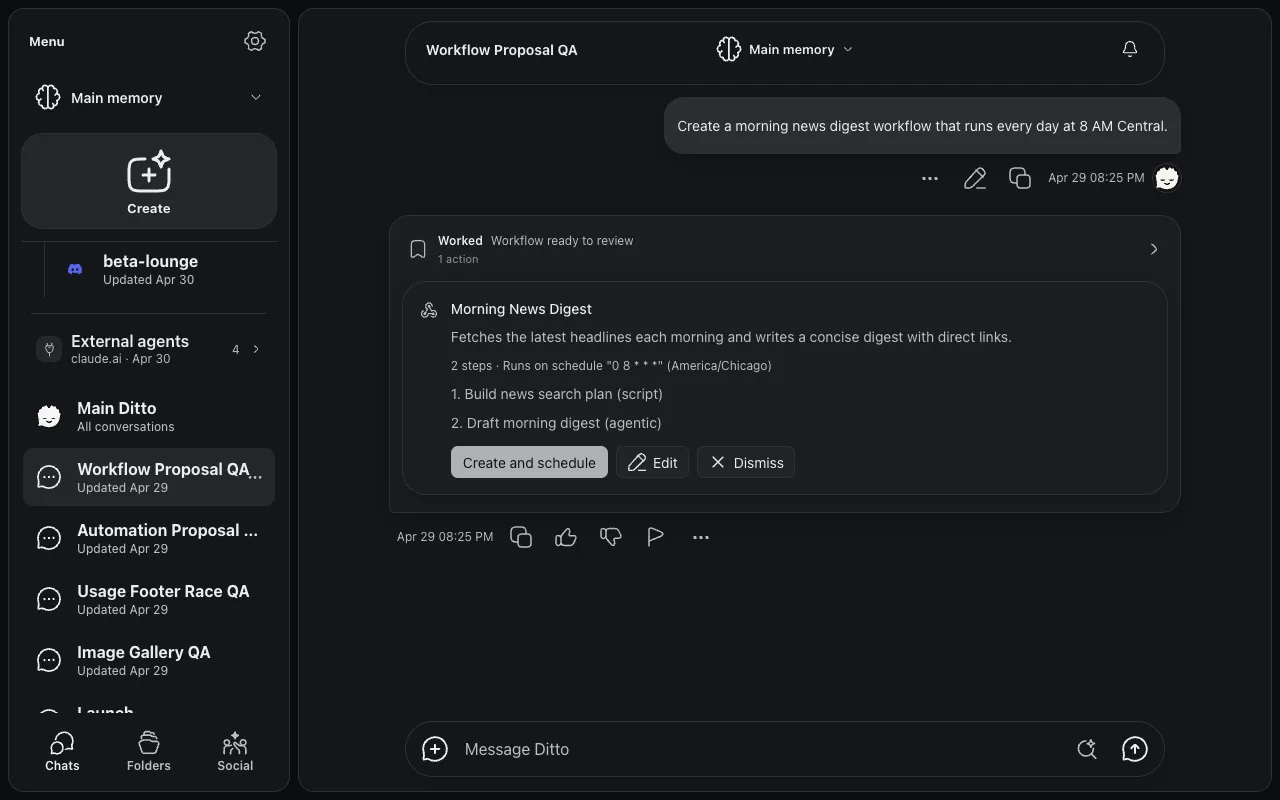
The easiest way to make one: just describe it in chat. Ask Ditto for something like “create a morning news digest workflow that runs every day at 8 AM” and it proposes the workflow as a card: steps, schedule, and a one-click Create and schedule:
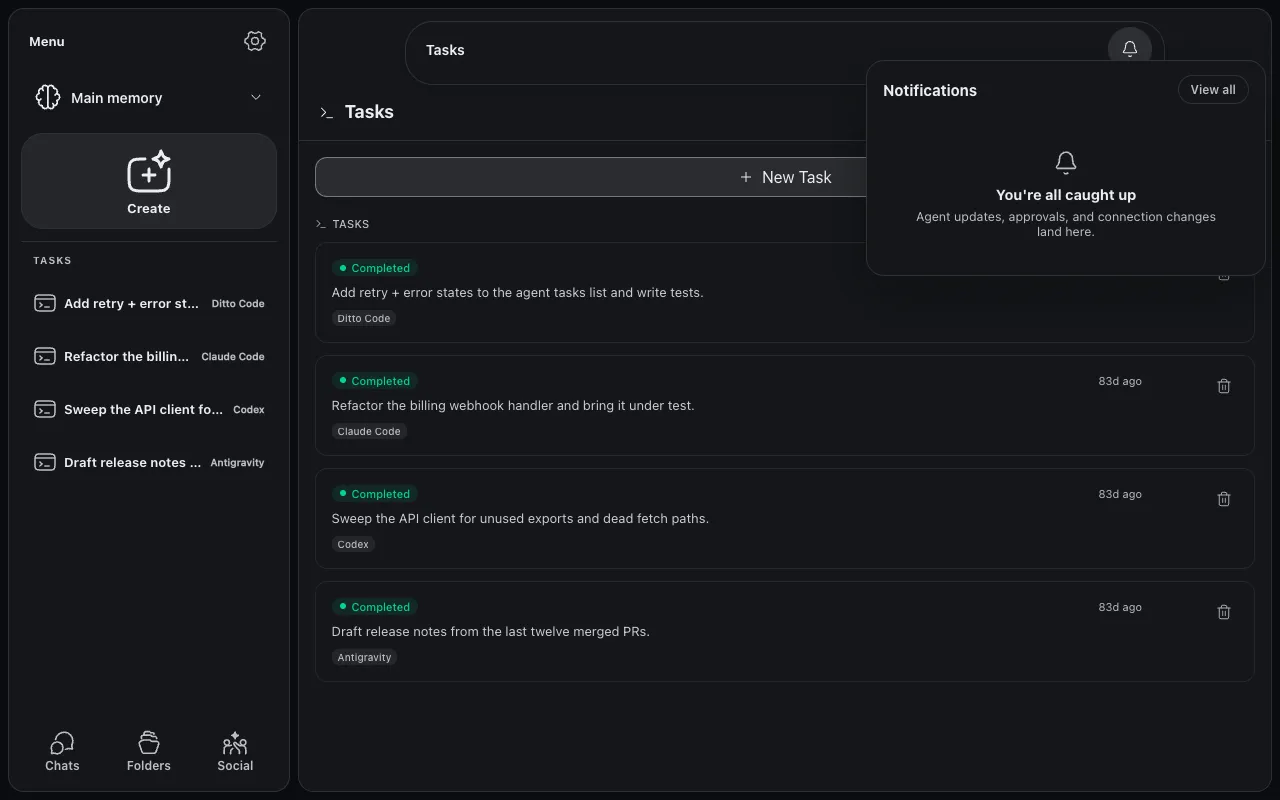
You can also manage existing workflows under Settings → Tasks → Workflows. Either way, check the notification bell (top right) for the result when a run completes: agent updates, approvals, and connection changes all land there.
Go deeper (optional)
Done with the core loop and still have ten minutes? These are where V2 starts to feel like magic.
Talk to Ditto live
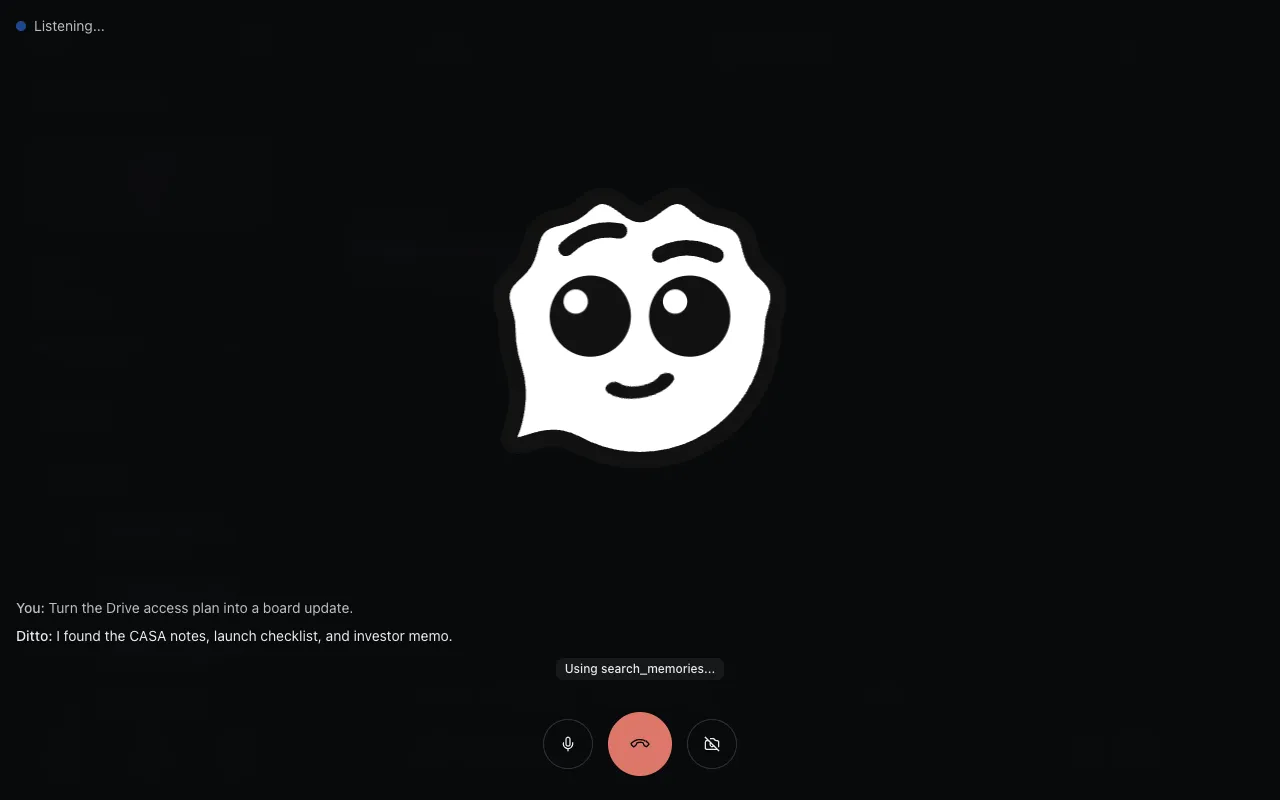
Open the + menu next to the composer and choose Live mode for a real-time voice conversation. It’s the same Ditto with the same memory: ask the questions from step 2 out loud and watch it search your history mid-sentence:
Read and reply to a synced chat, without leaving Ditto
Open one of the conversations under Connections in the sidebar and you get the real thread: every message in order, styled like the platform it came from, kept current while you read it. If sending is enabled for that connection, the composer posts back to the actual chat as you:
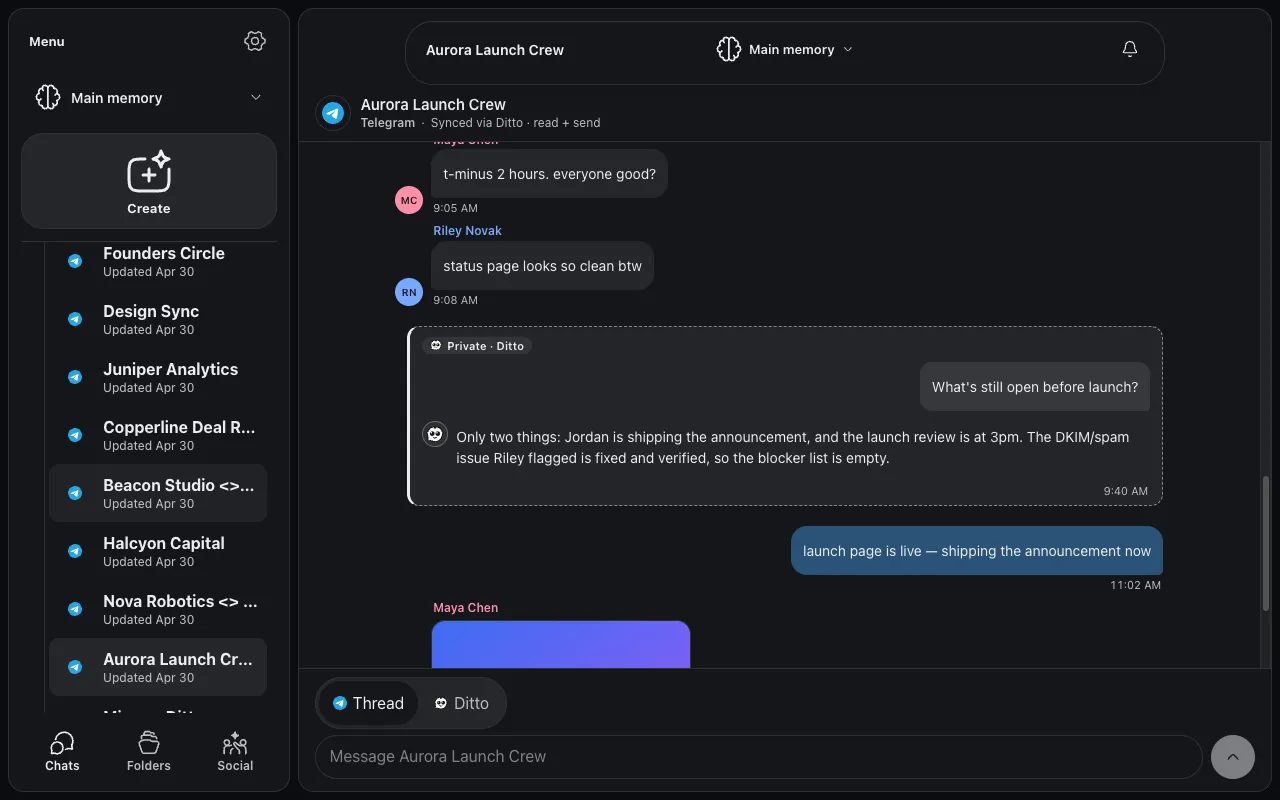
Now the part worth trying: flip the composer to Ditto and ask about the conversation you’re looking at. The answer is private: it never posts to the group, and nobody else in that chat sees it:
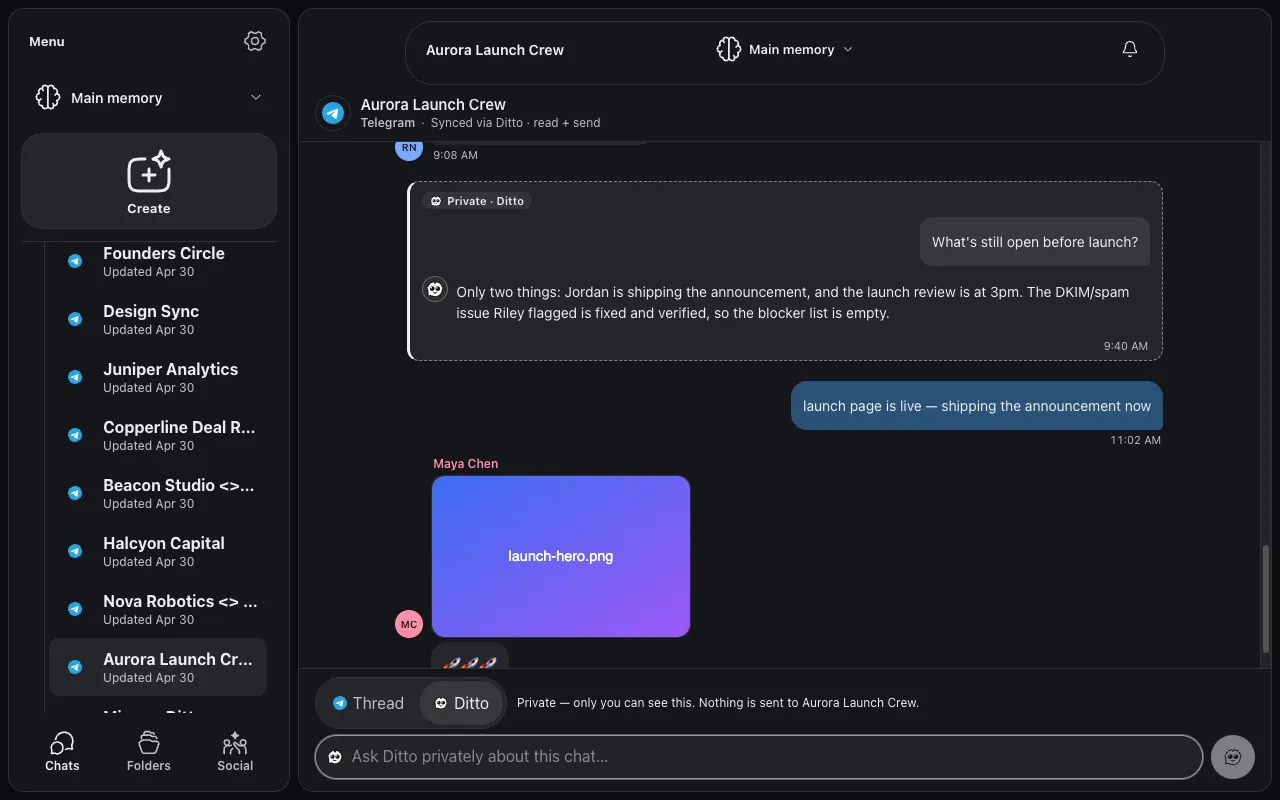
Threads are read-only by default; sending is opt-in per service, and Discord replies post through a bot on your behalf. If your composer shows a read-only bar instead, that connection just needs reconnecting with send permission.
Put coding agents to work: on the harness you already use
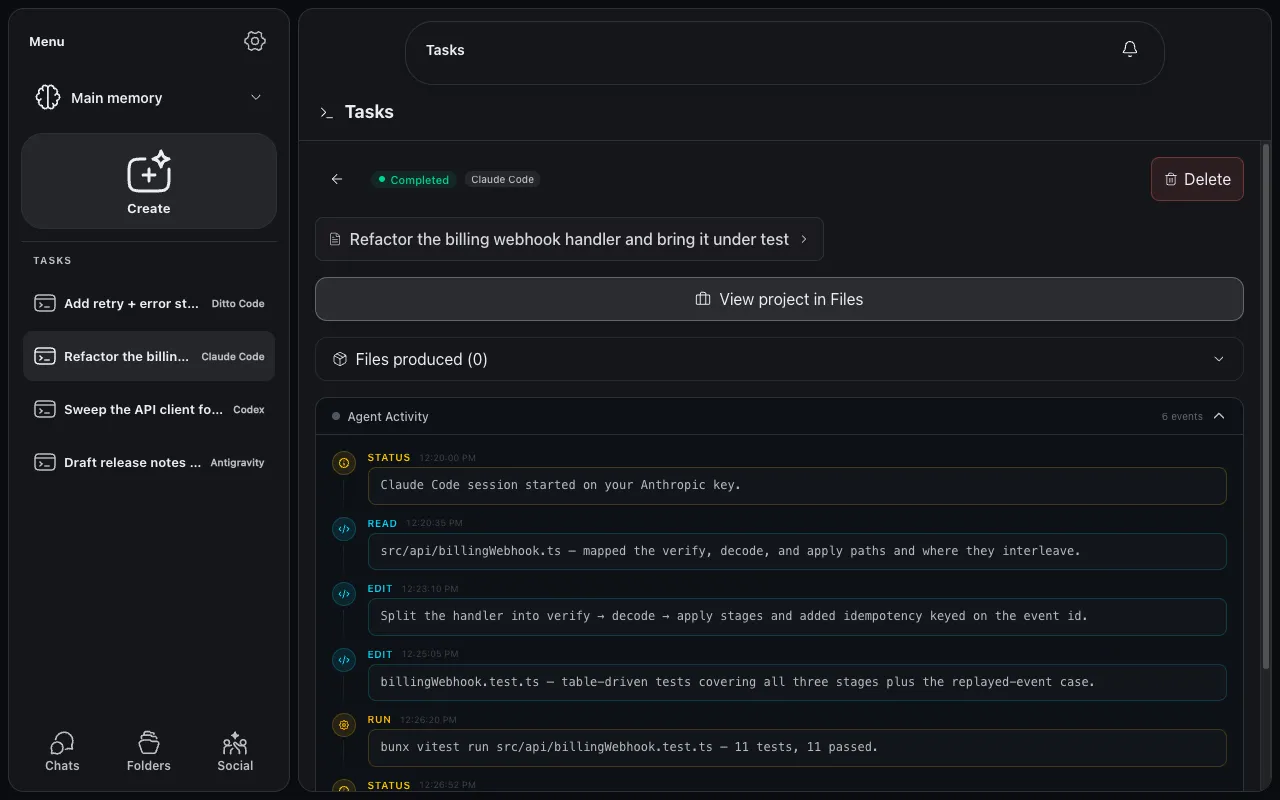
Ditto can run coding tasks for you in the background: describe one (“add retry logic to my sync script and write tests”) and an agent picks it up, works in a sandbox, and reports back as a task you can review.
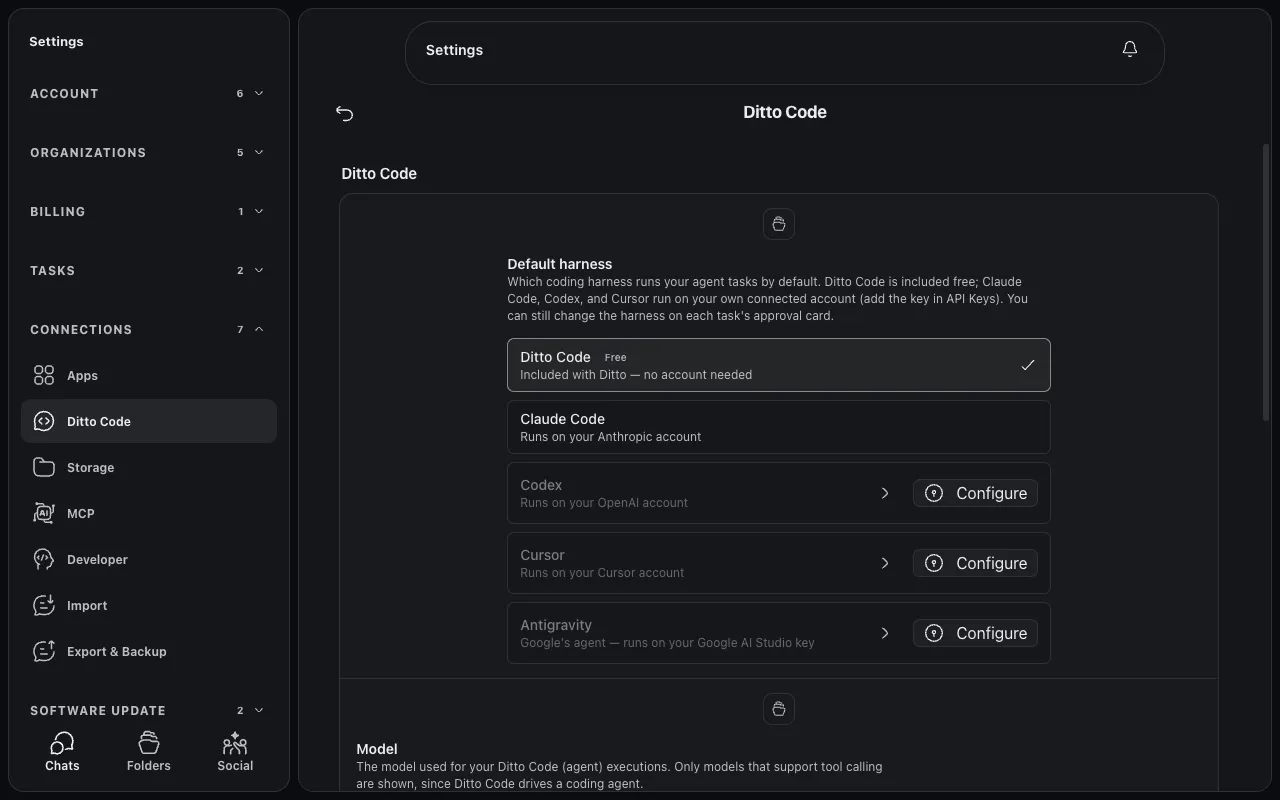
What makes this a V2 headline: you choose which coding agent does the work. Ditto Code is included free with no account needed, and the same task queue also runs Claude Code, Codex, Cursor, and Antigravity on your own connected accounts: one queue, one review flow, whichever agent your team already trusts:
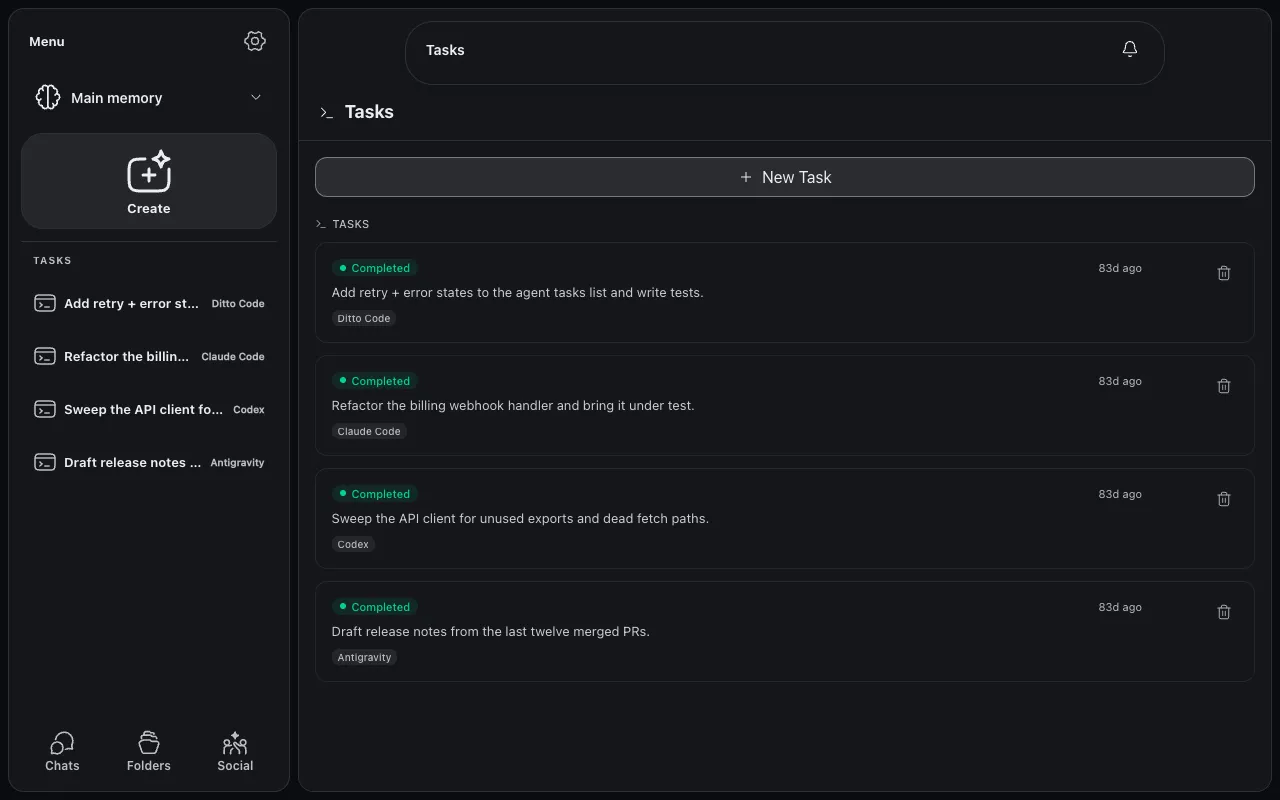
Open any task to watch what the agent actually did (every read, edit, and test run, step by step) while the sidebar keeps your other tasks one click away:
Set your default under Settings → Connections → Ditto Code (you can still switch the harness on any individual task’s approval card):
What we want feedback on
You can’t break anything: your data is safe, and everything you do in V2 is visible from classic Ditto too. What we need from you:
- Where did you get lost? If you sat there not knowing what to click, that is exactly the feedback we want. Be blunt.
- What broke? Anything slow, stuck, empty, or wrong: tell us what you did, what you expected, and what happened instead.
- What would you pay for? Which moment, if any, felt like “I need this at work”, and which features you’d never use.
Send feedback through the channel your Ditto contact set up for your team, or via support. Screenshots help enormously.
Falling back to classic Ditto
Classic Ditto keeps running at assistant.heyditto.ai throughout the beta. If anything in V2 blocks you, switch back: same account, same data, nothing lost. Then tell us what blocked you.
Known rough edges
V2 is under active development. During the beta, expect visual polish to change week to week, and the occasional feature to appear or move as we tune the experience. If something looks half-finished, it probably is: report it anyway; it helps us confirm what testers actually notice.