# Workflows
> A workflow is work Ditto does for you again and again. Describe the job once, then run it whenever you like or on a schedule.
---
# Workflows
A workflow is a job Ditto can do again. You describe it once in plain words, Ditto drafts it as a few steps, and from then on it runs whenever you start it or on a schedule you choose.
A chat does something once. A workflow does it every Monday morning, or every time you press **Run now**.
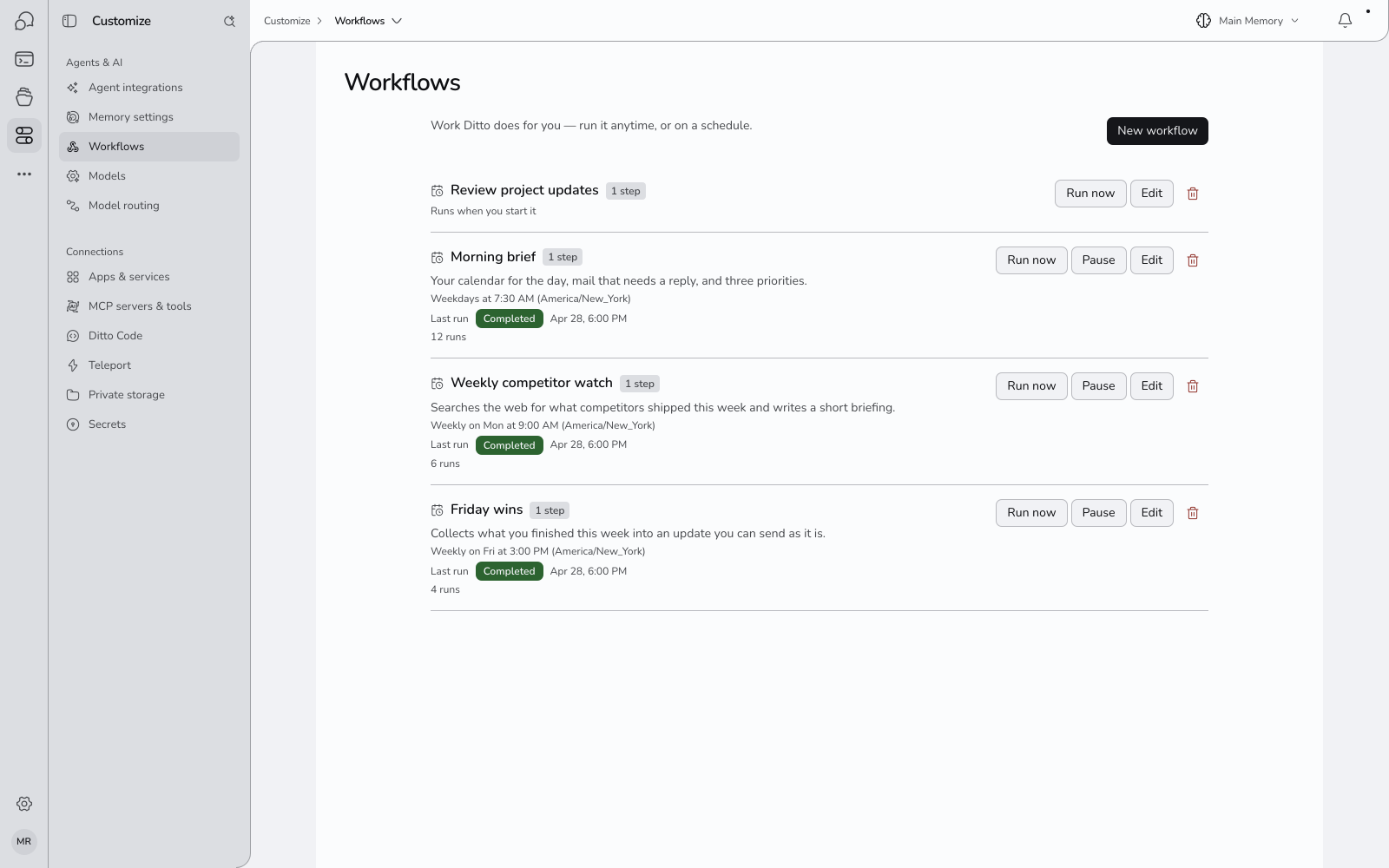
## What a Workflow Can Do
Most workflows have three kinds of step:
1. **Gather.** Search the web, look through your memories, or read from an app you have connected, such as Gmail, Google Calendar or GitHub.
2. **Think and write.** Ditto reads what was gathered and writes the result: a briefing, a plan, a list, a draft.
3. **Deliver.** Show the result in Ditto, send you an alert in Ditto, email it, post it to an app you connected, or save it to your files.
A workflow can also [stop and ask you something](/docs/workflow-questions) along the way, and carry on with your answer.
Some things people use them for:
- A morning brief with the day's calendar and the mail that needs a reply
- A weekly summary of news on a topic you follow
- A nudge list of pull requests that have waited too long for review
- A meal plan and shopping list every Sunday
- A monthly reminder of jobs due around the house
A workflow starts when you start it or when its schedule says so. It cannot start because something happened, such as an email arriving.
## Where to Find Them
Open **Customize → Agents & AI → Workflows** in the app. Every workflow you have is listed there with its schedule and how its last run went.
You do not have to go there to make one. You can ask for a workflow in any chat, and manage it from the card Ditto puts in the conversation. You can [run one from a chat](/docs/workflows-in-chat) too: type **@** and pick it.
## What You Do with a Workflow
| You want to | How | Guide |
| ---------------------- | ------------------------------------------------------------------------------ | ---------------------------------------------------------------------------------------- |
| Make one | Ask in chat, describe it on the Workflows page, or start from a ready-made one | [Creating a Workflow](/docs/creating-workflows) |
| Change one | Tap a part of it, or say what should be different | [Changing and Trying a Workflow](/docs/editing-workflows) |
| Check it works | Press **Try it** to run it once without sending anything | [Changing and Trying a Workflow](/docs/editing-workflows#try-it-before-it-runs-for-real) |
| Run it and see results | Set a schedule or press **Run now**, then open the run | [Schedules, Runs and Results](/docs/workflow-schedules-and-runs) |
| Have it ask you things | Say what it should ask, or start from a ready-made one that does | [Workflows That Ask You](/docs/workflow-questions) |
| Run it from a chat | Type **@** in a chat and pick it | [Workflows in Chat, and Guides](/docs/workflows-in-chat) |
| Bring in a skill | Paste a skill written for another AI agent | [Importing a Skill](/docs/importing-skills) |
## A Two-Minute Tour
Describe a job in one sentence, and Ditto drafts the workflow:
Then run it and read the result:
## How You Read a Workflow
Ditto shows a workflow as an **outline**: one sentence that says what it does, then each step as a plain sentence. The parts you can change are underlined. You never have to read or write code.
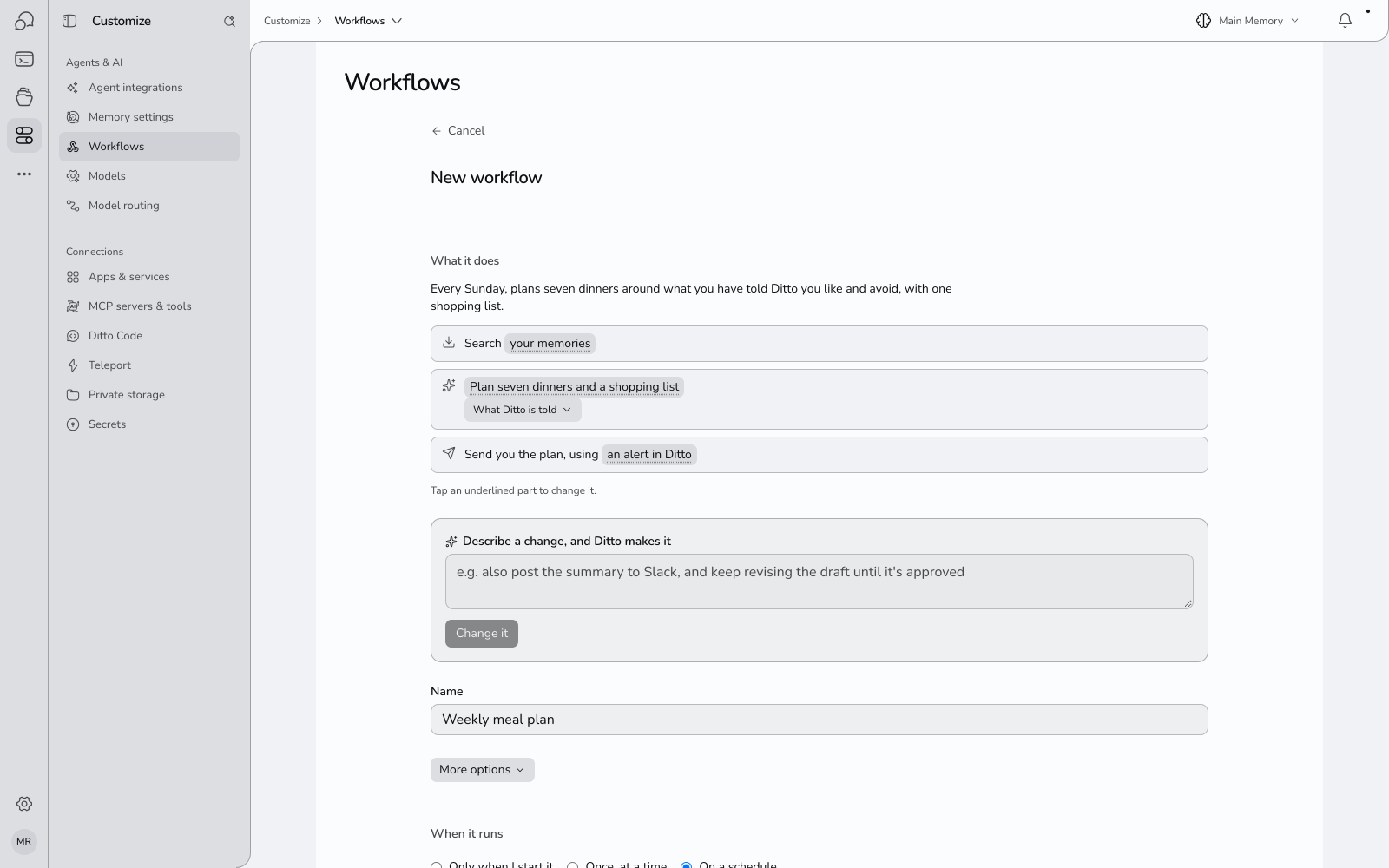
If you want the detail, **More options** shows the steps as Ditto wrote them. See [the full editor](/docs/editing-workflows#the-full-editor).
## What Ditto Will and Will Not Do on Its Own
Some things a workflow does by itself, every run:
- Search the web and read web pages
- Read your memories, and read from apps you connected
- Save a memory or a file
- Send **you** an alert in Ditto
Other things wait for your approval unless you said the workflow may do them:
- Send an email or post a message
- Create, change or delete something in an app you connected
- Delete a memory, or change a setting
- Generate an image, or start a coding task
Before you save a workflow, Ditto lists exactly what it would do without asking. See [approvals](/docs/workflow-schedules-and-runs#approvals).
## What It Costs
Trying a workflow is free. Real runs are paid from your balance, like chat: the cost comes mainly from the steps where Ditto thinks and writes, which use a model. Each run shows what it cost.
A run needs credits in your account. If your balance is empty, scheduled runs are skipped and the workflow shows **can't run · balance empty** until you add credits. See [Plans & Pricing](/docs/subscription) and [AI Models in Ditto](/docs/model-switching).
## Limits
| | |
| -------------------------------------- | ------------------------ |
| Workflows per account | 100 |
| Steps in one workflow | 20 |
| How often a schedule can run | At most every 10 minutes |
| Tries | 5 per day |
| How long a run waits for your approval | 2 days |
| How long a run waits for your answer | 2 days |
## Next
- [Creating a Workflow](/docs/creating-workflows)
- [Changing and Trying a Workflow](/docs/editing-workflows)
- [Schedules, Runs and Results](/docs/workflow-schedules-and-runs)
- [Workflows That Ask You](/docs/workflow-questions)
- [Workflows in Chat, and Guides](/docs/workflows-in-chat)
- [Importing a Skill](/docs/importing-skills)